---
title: How to Create a Forecast
description: Learn how to create a rolling three-way forecast in Reach Reporting, keep it up to date as new actuals roll in, and use it to make informed decisions based on current business trends.
---
[Skip to content](https://knowledge.reachreporting.com/how-to-create-a-forecast#main-content)
![Asset 1.png\]](https://knowledge.reachreporting.com/hs-fs/hubfs/Asset%201.png?height=22&name=Asset%201.png)
Open main navigation
Close main navigation
- [Go to reachreporting.com](https://reachreporting.com/)
[Go to reachreporting.com](https://reachreporting.com/)
How can we help improve your Reach?
- There are no suggestions because the search field is empty.
1. [Knowledge Center](https://knowledge.reachreporting.com/?hsLang=en)
2. [Budget / Forecast](https://knowledge.reachreporting.com/budget-forecast?hsLang=en)
3. [Getting Started](https://knowledge.reachreporting.com/budget-forecast?hsLang=en#getting-started)
# How to Create a Forecast
## Learn how to create a rolling three-way forecast in Reach Reporting, keep it up to date as new actuals roll in, and use it to make informed decisions based on current business trends.
### **In this article:**
- [What Is a Forecast?](https://knowledge.reachreporting.com/how-to-create-a-forecast#what-is-a-forecast)
- [Forecast vs. Budget: Key Differences](https://knowledge.reachreporting.com/how-to-create-a-forecast#forecast-vs-budget-key-differences)
- [Before You Begin: Starting Points](https://knowledge.reachreporting.com/how-to-create-a-forecast#before-you-begin-starting-points)
- [Option 1: Start from Scratch or Duplicate a Budget](https://knowledge.reachreporting.com/how-to-create-a-forecast#option1)
- [Option 2: Use a QBO Budget as Your Starting Point](https://knowledge.reachreporting.com/how-to-create-a-forecast#option2)
- [Step 1: Convert a Budget to a Forecast](https://knowledge.reachreporting.com/how-to-create-a-forecast#step1-convert-a-budget-to-a-forecast)
- [Step 2: Set the Forecast Month](https://knowledge.reachreporting.com/how-to-create-a-forecast#step2-set-the-forecast-month)
- [Step 3: Understand How Actuals Override Budget Data](https://knowledge.reachreporting.com/how-to-create-a-forecast#step3-understand-how-actuals-override-budget-data)
- [Step 4: Customize Your Forecast with Row Drivers](https://knowledge.reachreporting.com/how-to-create-a-forecast#step4-customize-your-forecast-with-row-drivers)
- [Step 5: Configure Balance Sheet Automation](https://knowledge.reachreporting.com/how-to-create-a-forecast#step5-configure-balance-sheet-automation)
- [Step 6: Set the Forecast as Default](https://knowledge.reachreporting.com/how-to-create-a-forecast#step6-set-the-forecast-as-default)
- [Maintaining and Rolling Your Forecast Monthly](https://knowledge.reachreporting.com/how-to-create-a-forecast#maintaining-and-rolling-your-forecast-monthly)
- [When to Roll the Forecast Month Forward](https://knowledge.reachreporting.com/how-to-create-a-forecast#when-to-roll-the-forecast-month-forward)
- [Refreshing Row Drivers After Rolling Forward](https://knowledge.reachreporting.com/how-to-create-a-forecast#refreshing-row-drivers-after-rolling-forward)
- [If Actuals Are Adjusted After Rolling Forward](https://knowledge.reachreporting.com/how-to-create-a-forecast#if-actuals-are-adjusted-after-rolling-forward)
- [Multi-Year Forecasts](https://knowledge.reachreporting.com/how-to-create-a-forecast#multi-year-forecasts)
- [New Account Warning](https://knowledge.reachreporting.com/how-to-create-a-forecast#new-account-warning)
- [Hiding Unfinalized Actuals](https://knowledge.reachreporting.com/how-to-create-a-forecast#hiding-unfinalized-actuals)
- [Troubleshooting](https://knowledge.reachreporting.com/how-to-create-a-forecast#troubleshooting)
- [Cash balance is not calculating correctly](https://knowledge.reachreporting.com/how-to-create-a-forecast#cash-balance-is-not-calculating-correctly)
- [Row driver calculations are not updating after rolling the forecast forward](https://knowledge.reachreporting.com/how-to-create-a-forecast#row-driver-calculations-not-updating-after-rolling)
- [Forecast values look incorrect after I added new accounts mid-year](https://knowledge.reachreporting.com/how-to-create-a-forecast#forecast-values-look-incorrect-after-new-accounts)
- [The Annual Target driver with Seasonality is not calculating correctly](https://knowledge.reachreporting.com/how-to-create-a-forecast#annual-target-with-seasonality-calculation)
- [My forecast shows "View Only"](https://knowledge.reachreporting.com/how-to-create-a-forecast#my-forecast-shows-view-only)
- [Best Practices](https://knowledge.reachreporting.com/how-to-create-a-forecast#best-practices)
---
---
### **What Is a Forecast?**
A forecast in Reach Reporting is a living, rolling financial plan that replaces past budget periods with actual data as each month closes. Unlike a static budget, a forecast continuously reflects the most current state of your business — combining real actuals for closed periods with forward-looking projections for open periods.
Reach Reporting supports **three-way forecasting**, meaning it automatically integrates your:
- **Profit & Loss (P&L)**
- **Balance Sheet**
- **Cash Flow Statement**
For a full overview of how the three-way integration works, see[Mastering Budgeting with Reach Reporting's 3-Way Planning Tool](https://knowledge.reachreporting.com/mastering-budgeting-with-reach-reportings-3-way-planning-tool?hsLang=en).
---
### **Forecast vs. Budget: Key Differences**
Understanding the difference between a budget and a forecast helps you use each tool effectively.
| | **Budget** | **Forecast** |
| --- | --- | --- |
| **Reference data for drivers** | Pulls from historical data | Pulls from the most recent actuals available |
| **Closed periods** | Shows budget amounts | Replaced by actual data (highlighted in blue) |
| **Receivables/Payables balance** | Based on last year's data | Based on the last actual AR/AP balance |
| **Net income on Balance Sheet** | Based on budgeted figures | Adds forecasted monthly net profit/loss to current year actuals from the books |
| **Cash position** | Projected from budget assumptions | Sourced from actual bank account balances on the Balance Sheet |
| **Rolling forward** | Not applicable | Forecast month advances as each book month closes |
When you roll a forecast forward, new actuals replace prior reference data. This means all driver calculations — trailing averages, linear trends, carry forward, and more — automatically update to reference the latest closed data.
---
### **Before You Begin: Starting Points**
#### **Option 1: Start from Scratch or Duplicate a Budget**
You can create a forecast two ways:
1. **Build a new budget** and convert it to a forecast (see Step 1 in the next section).
2. **Duplicate an existing budget** to preserve your original budget, then convert the duplicate to a forecast. This is the recommended approach if you want to maintain both a budget and a forecast side by side.
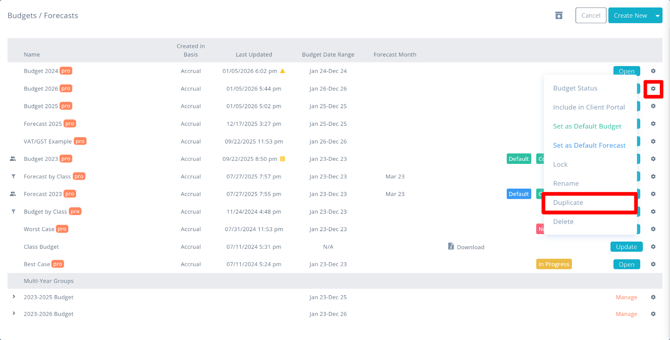
To duplicate a budget, navigate to **Budgets/Forecasts**, click the gear icon next to the budget you want to duplicate, and select **Duplicate**. Then follow the steps below to convert it to a forecast.
#### **Option 2: Use a QuickBooks or Xero Budget as Your Starting Point**
If you have a budget in QuickBooks Online (QBO), QuickBooks Desktop (QBD), or Xero that you would like to use as the basis for your forecast, note that **there is no way to import the budget directly into Budgets Pro**, and Reach **does not automatically pull Forecasts from these integrations**. Instead, follow these steps:
1. In QBO, QBD, or Xero, run the budget report for the full year, then **export it to Excel**.
2. In Reach Reporting, create a new **Budgets Pro** budget for the same fiscal year.
3. Open the budget in Reach and open the exported Excel file side by side.
4. **Copy and paste** the monthly budget amounts from Excel into the corresponding rows in the Reach budget.
5. Once the budget data is entered, proceed to convert it to a forecast as described in Step 1 below.
**Note:** For more information on creating budgets in Reach, see[How to Create a Budget](https://knowledge.reachreporting.com/how-to-create-a-budget?hsLang=en) and[Mastering Budgeting with Reach Reporting's 3-Way Planning Tool](https://knowledge.reachreporting.com/mastering-budgeting-with-reach-reportings-3-way-planning-tool?hsLang=en).
---
### **Step 1: Convert a Budget to a Forecast**
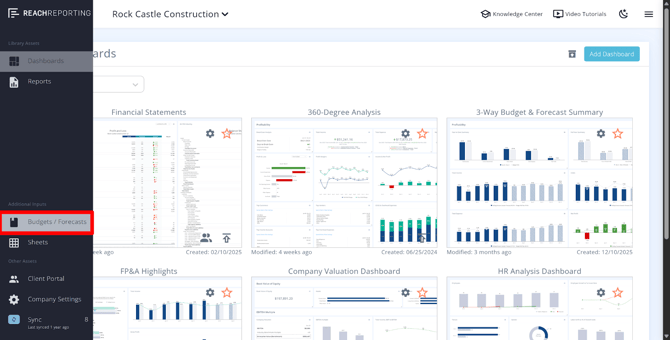
1. Navigate to **Budgets/Forecasts** in the left navigation bar.
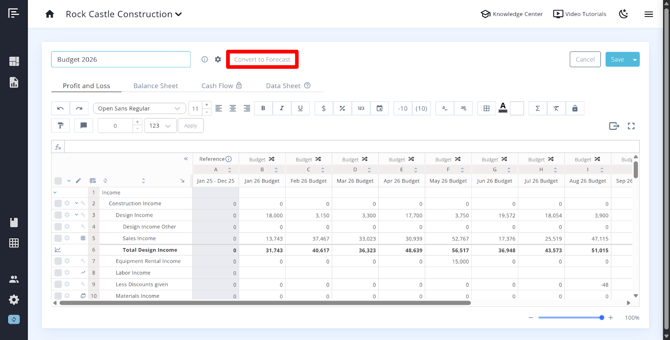
2. Open the budget you want to convert
3. Choose **Convert to Forecast**.
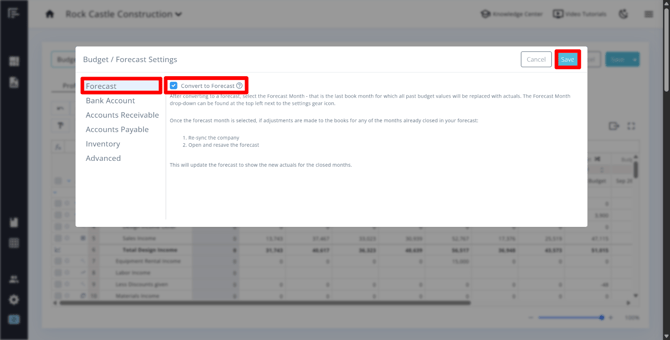
4. Check the box to **Convert to Forecast** in the Budget/Forecast Settings \> Forecast and click **Save**
**Tip:** If you want to keep your original budget intact, duplicate it first, rename the duplicate, and convert only the duplicate.This allows you to maintain both a budget and a forecast — one for your original plan and one that updates with actuals each month.
---
### **Step 2: Set the Forecast Month**
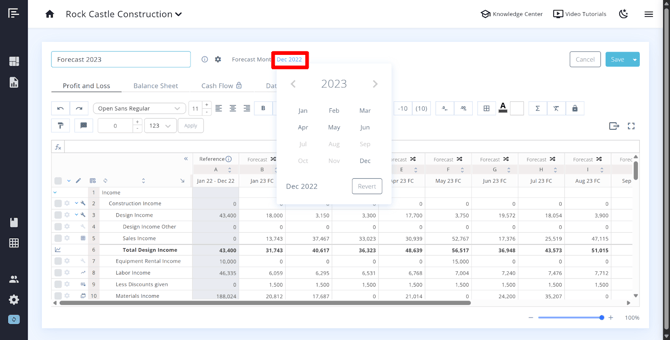
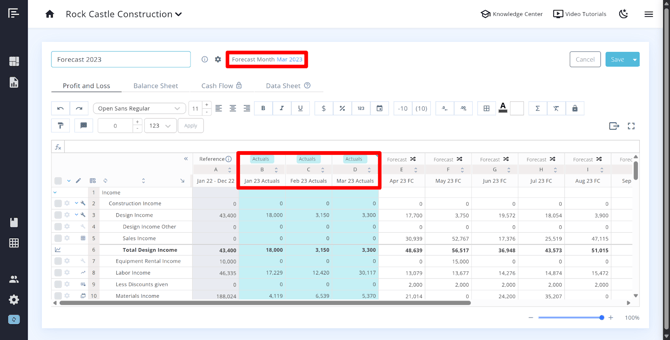
After converting to a forecast, you will be prompted to select the **Forecast Month** — the first future month for which forecast projections will apply.
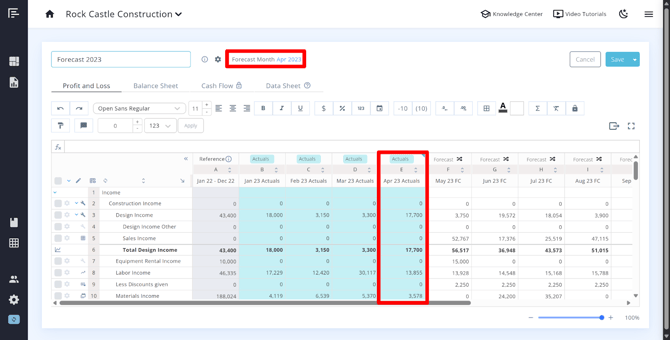
- All months **before** the forecast month are considered closed periods; actuals will replace your budget figures for those months.
- All months **after** the forecast month will continue to show your projected values.
---
### **Step 3: Understand How Actuals Override Budget Data**
Once the forecast month is set, closed period data (highlighted in **blue**) automatically overrides your budget figures. Your **full-year forecast totals** update instantly to reflect actual performance in closed months plus projected performance in future months.
**How reference data works in a forecast:**
- **Accounts Receivable:** Your existing AR balance is based on the last actual receivables balance, not last year's data.
- **Current Year Net Income on the Balance Sheet:** Adds your forecasted monthly net profit or loss values to the current year actuals from your books. If you need to adjust for retained earnings (e.g., distributions or adjustments made during the year), you can type over a cell or use a formula to correct this.
- **Cash Position:** Sourced from actual bank account balances on the Balance Sheet. The ending cash balance is calculated from the beginning actuals balance plus cash flow adjustments from forecasted P&L and Balance Sheet changes.
For a deeper look at how reference data is used across your forecast, see[Budgeting with Reference Data](https://knowledge.reachreporting.com/budgeting-with-reference-data?hsLang=en).
---
### **Step 4: Customize Your Forecast with Row Drivers**
Just like with budgets, you can adjust forecast values using a range of [automated row drivers](https://knowledge.reachreporting.com/row-drivers-in-budgets/forecasts?hsLang=en) or manual inputs. In a forecast, these drivers automatically update as new actuals come in each month.
**Key forecast-specific driver behaviors:**
- **Trailing Average Driver:** The date range updates automatically when you roll forward, so trailing average calculations are always based on the most recent available actuals.
- **Annual Target Driver (Responsive option):** Adjusts future months dynamically based on actual data received, keeping your total at the target level. It also accounts for any manual overrides you've made.
- **Linear Forecast Trend Driver (Rolling 24 Months):** When set to include current year actuals, it updates trend values based on a rolling 24-month window.
- **Linear Forecast Trend Driver (Use Prior 2 Fiscal Years):** This will apply a linear trend growth rate over the past 2 fiscal years.
- **Carry Forward Driver (Balance Sheet):** Automatically updates your forecast values based on the prior month's actuals.
You can also use:
- **Custom spreadsheet formulas** referencing your actuals
- **Data Sheet links** to connect custom inputs and external data to your P&L and Balance Sheet
- **Google Sheets or Excel connections** for collaborative planning inputs
For a complete guide to all available drivers and how to apply them, see[Row Drivers in Budgets/Forecasts](https://knowledge.reachreporting.com/row-drivers-in-budgets/forecasts?hsLang=en).
For details on connecting external planning data, see[Budget/Forecast Data Sheets](https://knowledge.reachreporting.com/budget/forecast-data-sheets?hsLang=en).
---
### **Step 5: Configure Balance Sheet Automation**
Reach Reporting's three-way forecast automatically links Balance Sheet changes to your Cash Flow Statement. As you update P&L projections, the corresponding Balance Sheet accounts (AR, AP, Inventory) and cash flow projections update accordingly — with no manual formulas needed.
Your ending cash balance is calculated automatically from:
- Beginning actual cash balance (from the Balance Sheet)
- Plus/minus cash flow adjustments from forecasted P&L and Balance Sheet changes
To learn more about AR, AP, and Inventory planning, see[Planning for Accounts Receivable, Accounts Payable, and Inventory Turnover](https://knowledge.reachreporting.com/planning-for-accounts-receivable-accounts-payable-and-inventory-turnover?hsLang=en).
---
### **Step 6: Set the Forecast as Default**
Once your forecast is complete, set it as the **default forecast** for your company.
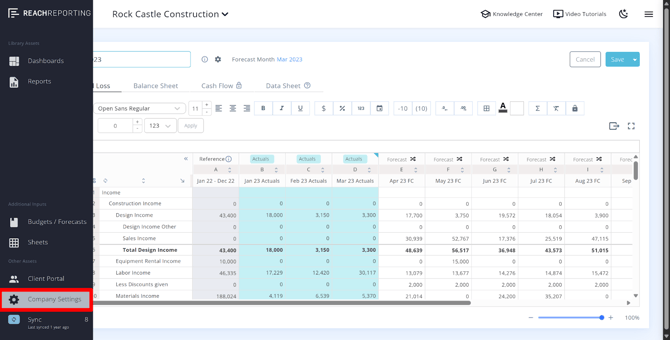
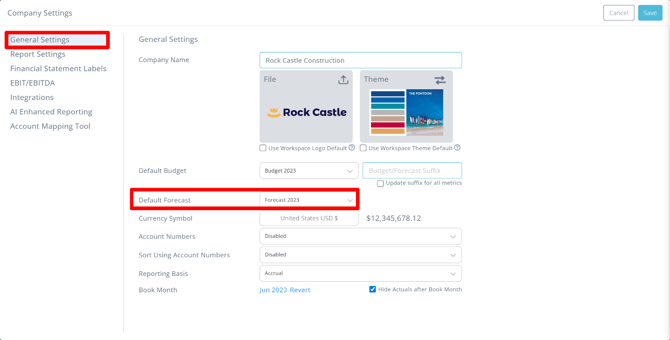
1. Go to **Company Settings** \> **General Settings.**
2. Select the forecast as the **Default Forecast**.
Setting it as default will:
- Automatically pull the forecast into your **template dashboards and reports**
- Allow you to instantly **visualize deviations** from your original planning strategy
- Keep your reporting current as new actuals flow in each month
---
### **Maintaining and Rolling Your Forecast Monthly**
A key advantage of a rolling forecast is that it stays current as your business data updates. Here is how to maintain it effectively.
#### **When to Roll the Forecast Month Forward**
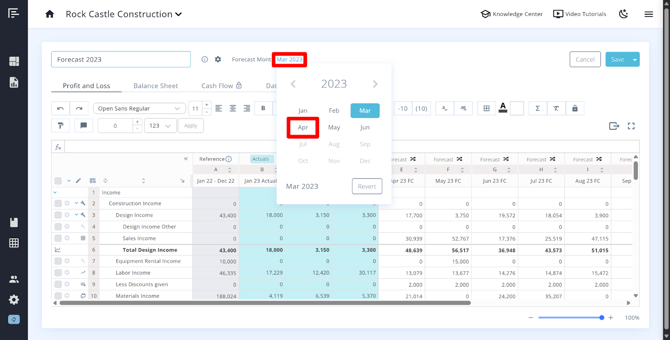
Roll the forecast month forward **only after the book month is fully closed** and no further actuals adjustments are expected. This ensures your cash position, AR, AP, and driver calculations are based on finalized data.
To roll the forecast forward:
1. Open the forecast in **Budgets/Forecasts**.
2. Click the current forecast month, highlighted in blue
3. Advance the **Forecast Month** to the next period.
4. **Save** the forecast.
Once rolled forward, the newly closed month's actuals will replace the prior forecast figures for that period, and all driver calculations referencing actuals will update automatically.
#### **Refreshing Row Drivers After Rolling Forward**
When you roll the forecast month forward, driver calculations that reference actuals do not update automatically — you need to manually trigger a refresh. To learn more about refreshing the row drivers, see[Budgeting with Reference Data](https://knowledge.reachreporting.com/budgeting-with-reference-data?hsLang=en#refreshing-row-drivers).
#### **If Actuals Are Adjusted After Rolling Forward**
If your bookkeeping data is adjusted after you have already rolled the forecast month forward:
1. Allow the company to **sync** and pull in the updated actuals.
2. **Re-save** the forecast. This will cause the reference data to refresh based on the corrected actuals.
**Note:** You do not need to roll the forecast month back — simply re-saving after a data sync is sufficient to update the reference data.
#### **Multi-Year Forecasts**
You can use the same steps in the [Multi-Year Budget Creation Guide](https://knowledge.reachreporting.com/multi-year-budget-creation-guide?hsLang=en) to create a rolling forecast that spans multiple fiscal years.
---
### **New Account Warning**
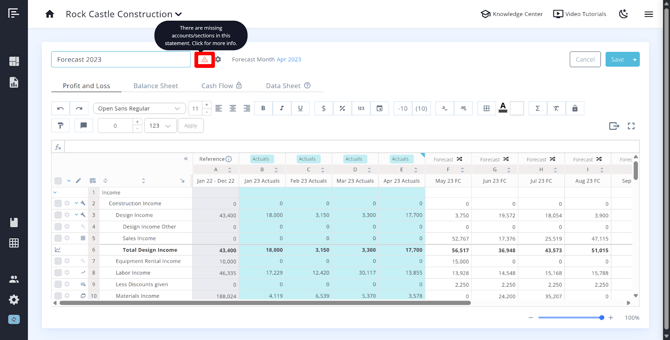
If new accounts are added to your chart of accounts during the fiscal year, a **warning icon** will appear at the top of the forecast. Review and map these new accounts so they are properly included in your forecast calculations. This works the same as with budgets.
---
### **Hiding Unfinalized Actuals in Metrics and Statements**
If you want to hide actuals in your metrics and statements that have not yet been finalized for the current book month, you can enable this in **Company Settings**:
1. Go to **Company Settings** \> **General Settings.**
2. Enable **Hide Actuals After Book Month**.

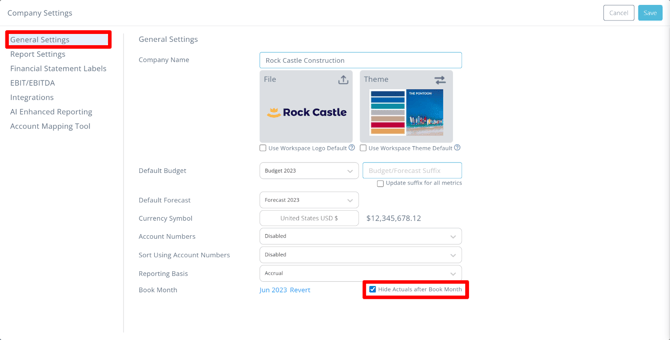
This will hide actuals for months beyond the current book month so that unfinalized data does not appear in your reports or dashboards. Many report templates already include this feature automatically.
For more information, see the[Hide Actuals After Book Month](https://knowledge.reachreporting.com/hide-actuals-after-book-month?hsLang=en) article.
---
### **Troubleshooting**
#### **Cash balance is not calculating correctly.**
Make sure the forecast month has only been rolled forward after the book month is fully closed. If adjustments were made to actuals after rolling forward, re-save the forecast after the data sync to refresh the reference data.
#### **Row driver calculations are not updating after rolling the forecast forward.**
Drivers do not refresh automatically. Go to **Advanced Settings** and trigger a refresh, or use the manual refresh icon in the P&L or Balance Sheet. Always save the forecast after refreshing.
#### **Forecast values look incorrect after I added new accounts mid-year.**
Check for the warning icon at the top of the forecast. New accounts must be reviewed and mapped before they will calculate correctly.
#### **The Annual Target driver with Seasonality is not calculating correctly.**
Check for negative values in the prior year data. The seasonality calculation cannot process negative growth rates and will return zero instead. Click into Row Settings \> Preview to check for negative values. If found, manually enter the corrected value for that month (equal to the difference between the annual target and the total shown). See[Row Drivers in Budgets/Forecasts](https://knowledge.reachreporting.com/row-drivers-in-budgets/forecasts?hsLang=en#troubleshooting-annual-target-with-seasonality) for more detail.
#### **My forecast shows "View Only."**
If you are in a [classed forecast](https://knowledge.reachreporting.com/budgets-by-class?hsLang=en), you will need to change the P&L dropdown to the specific class and update each class individually.
---
### **Best Practices**
- **Duplicate before converting.** Always duplicate your budget before converting it to a forecast so you preserve the original annual plan.
- **Only roll forward after the book month is fully closed.** This ensures all reference data — cash, AR, AP, drivers — is based on finalized actuals.
- **Set the forecast as default** once approved so it automatically flows into all template reports and dashboards.
- **Use the Responsive Annual Target option** for revenue or expense accounts with annual goals — it will automatically adjust remaining months as actuals come in.
- **Add comments** to document your assumptions, especially for manual overrides, so team members understand the rationale behind forecast decisions.
- **Share via the Client Portal** to give clients view-only or edit access to the forecast. See[Budgets and Forecasts in the Client Portal](https://knowledge.reachreporting.com/budgets-and-forecasts-in-the-client-portal?hsLang=en).
---
### [**Go to the Reach Reporting app\>**](https://app.reachreporting.com/login)
ARE YOU NOT CURRENTLY USING REACH REPORTING?
[learn more at reachreporting.com](https://reachreporting.com/)
### **We are dedicated to helping you.**
\- Need Additional Help?
*Your success is important to us.*
Whether you're working as a CFO of a business or part of an accounting firm, Reach Reporting is here to improve your working knowledge of reporting and provide service tips and skills to ensure you're at the top of your game.
We make sure that you have access to staff members who are best suited to help you. We work together to resolve issues and create memorable moments that empower you to enhance your reporting skills.
We are here to listen to you. We understand that using new technology can be frustrating, so we can answer questions or jump on a quick Zoom call. Our entire staff has an in-depth knowledge of Reach Reporting and can quickly direct you to best practices to improve your reporting.
We are focused on providing solutions that save you time and increase your value. We continue to improve each day and look forward to visiting with you. Your communication with us is vital and appreciated.
Please feel free to chat with us by clicking the help chat bubble in the lower right-hand corner of this page.
Reach out to your Reach Reporting Rep and schedule a Zoom meeting by clicking the meeting link in their email signature.
Or schedule to join our [ongoing webinars](https://reachreporting.com/webinars).
Reach Reporting is dedicated to helping provide a knowledge base that is easy to understand and informative. If you still have questions that have not been answered, please let us know by emailing support@reachreporting.com, chatting with our support team, or calling us at [(877) 467-7637](https://www.google.com/search?q=reach+reporting&rlz=1C1CHBF_enUS910US910&oq=reach+reporting&aqs=chrome..69i57j46i67i175i199j0i512l2j69i65l2j69i61j69i65.2687j0j4&sourceid=chrome&ie=UTF-8#). We are here to ensure that you have a positive experience with Reach Reporting, as we want to continue to be the reporting solution you trust.
### **Need more access to Reach Reporting Resources?**
Reach Reporting has a wealth of knowledge and a robust online community to support you as you create reports that provide powerful insight. Please look into the following resources.
Reach Reporting Blog: We add[blogs](https://reachreporting.com/blog) to our site every month to give you great information in a fun and friendly manner.
Case Studies: We interview one company per month to help our clients highlight how they are using Reach Reporting and how it is improving their services and firm offerings. These[case studies](https://reachreporting.com/case-studies) are invaluable to our community.
Knowledge Center: From simple to complicated, we provide step-by-step guidance to utilize every aspect of Reach Reporting in our robust[knowledge center.](https://knowledge.reachreporting.com/?hsLang=en)
Video Tutorials: We know watching is sometimes easier than reading, which is why all of our tutorials are video-based in the[video tutorial section](https://reachreporting.com/training-videos) of Reach Reporting and[Youtube](https://www.youtube.com/channel/UCVoqUVWnR1KZlNw3nXu_0AA?view_as=subscriber).
Social Networks: Join us on[FaceBook](https://www.facebook.com/reachreporting/),[LinkedIn](https://www.linkedin.com/company/reach-reporting/),[Youtube](https://www.youtube.com/channel/UCVoqUVWnR1KZlNw3nXu_0AA?view_as=subscriber), and[Twitter](https://twitter.com/reachreporting).
Monthly Newsletter: Go to the footer of [reachreporting.com](https://reachreporting.com/) and sign up to receive the Reach Reporting newsletters delivered directly to your inbox. Our newsletters cover tips and tricks, current events in accounting, strategies to improve your advisory services, and much more.
We look forward to helping you build insightful reports,
The Reach Reporting Team.
---
- [General Info](https://knowledge.reachreporting.com/general-info?hsLang=en#main-content)
- [Company Settings](https://knowledge.reachreporting.com/general-info?hsLang=en#company-settings)
- [Billing](https://knowledge.reachreporting.com/general-info?hsLang=en#billing)
- [Troubleshooting](https://knowledge.reachreporting.com/general-info?hsLang=en#troubleshooting)
- [Integrations](https://knowledge.reachreporting.com/integrations?hsLang=en#main-content)
- [QuickBooks Online](https://knowledge.reachreporting.com/integrations?hsLang=en#quickbooks-online)
- [XERO](https://knowledge.reachreporting.com/integrations?hsLang=en#xero)
- [Digits](https://knowledge.reachreporting.com/integrations?hsLang=en#digits)
- [QuickBooks Desktop](https://knowledge.reachreporting.com/integrations?hsLang=en#quickbooks-desktop)
- [CSV Trial Balance](https://knowledge.reachreporting.com/integrations?hsLang=en#csv-trial-balance)
- [Gusto](https://knowledge.reachreporting.com/integrations?hsLang=en#gusto)
- [MYOB](https://knowledge.reachreporting.com/integrations?hsLang=en#myob)
- [Workspaces](https://knowledge.reachreporting.com/workspaces?hsLang=en#main-content)
- [Companies](https://knowledge.reachreporting.com/workspaces?hsLang=en#companies)
- [Users](https://knowledge.reachreporting.com/workspaces?hsLang=en#users)
- [Troubleshooting](https://knowledge.reachreporting.com/workspaces?hsLang=en#troubleshooting)
- [Dashboards](https://knowledge.reachreporting.com/dashboards?hsLang=en)
- [Reports](https://knowledge.reachreporting.com/reports?hsLang=en#main-content)
- [Getting Started](https://knowledge.reachreporting.com/reports?hsLang=en#getting-started)
- [Report Builder Elements](https://knowledge.reachreporting.com/reports?hsLang=en#report-builder-elements)
- [Metrics/Statement Builder](https://knowledge.reachreporting.com/metrics-statement-builder?hsLang=en#main-content)
- [Display Options](https://knowledge.reachreporting.com/metrics-statement-builder?hsLang=en#display-options)
- [AR/AP Aging](https://knowledge.reachreporting.com/metrics-statement-builder?hsLang=en#ar-ap-aging)
- [Customizing a Metric](https://knowledge.reachreporting.com/metrics-statement-builder?hsLang=en#customizing-a-metric)
- [Sheets](https://knowledge.reachreporting.com/sheets?hsLang=en)
- [Budget / Forecast](https://knowledge.reachreporting.com/budget-forecast?hsLang=en#main-content)
- [Getting Started](https://knowledge.reachreporting.com/budget-forecast?hsLang=en#getting-started)
- [Integrations](https://knowledge.reachreporting.com/budget-forecast?hsLang=en#integrations)
- [Using Budgets/Forecasts](https://knowledge.reachreporting.com/budget-forecast?hsLang=en#using-budgets-forecasts)
- [Consolidations](https://knowledge.reachreporting.com/consolidations?hsLang=en)
- [Client Portal](https://knowledge.reachreporting.com/client-portal?hsLang=en)
- [AI Enhanced Reporting Info](https://knowledge.reachreporting.com/ai-enhanced-reporting-info?hsLang=en)
- [New Features and Updates](https://knowledge.reachreporting.com/new-features-and-updates?hsLang=en)
- [Claude Connector](https://knowledge.reachreporting.com/claude-connector?hsLang=en)
[](https://reachreporting.com/)
Reach Reporting Help Center
Copyright © 2026, Reach Reporting