![Asset 1.png]](https://knowledge.reachreporting.com/hs-fs/hubfs/Asset%201.png?height=22&name=Asset%201.png)
In this article:
- Overview
- Accessing Budget/Forecast Data Sheets
- Creating Custom Calculations
- Simplifying Your View
- Linking Data Sheet Calculations to Your Budget/Forecast
- Incorporating External Data from Sheets
- Refreshing Referenced Data
- Best Practices
Overview
Budget/Forecast Data Sheets provide a powerful way to enhance your financial planning in Reach Reporting. This feature allows you to create custom calculations with complex formulas, incorporate data from external spreadsheets, and build sophisticated "what-if" scenarios—all within your budget or forecast workflow.
Budget/Forecast Data Sheets are particularly useful for modeling scenarios like:
- Payroll costs for new hires
- Revenue per employee
- New asset purchases and depreciation schedules
- Loan and interest payment calculations
- Custom revenue or expense drivers
- Multi-variable financial scenarios
- VAT/GST calculations
Accessing Budget/Forecast Data Sheets
To access Data Sheets within a budget or forecast:
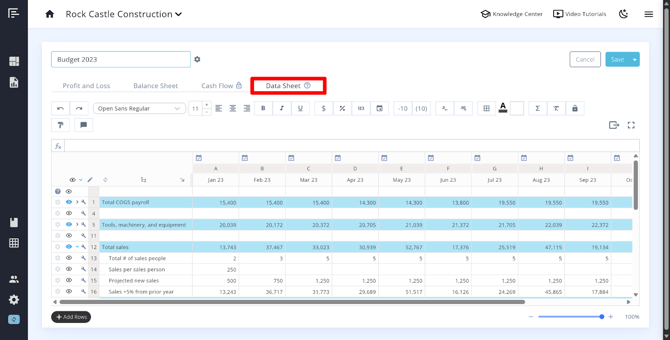
- Open the budget or forecast you want to work with
- Navigate to the Data Sheets tab
- Here you can view existing calculations, add new rows, or link external data sources
Note: The Data Sheet in the Budget/Forecast is only used for that specific Budget/Forecast.
Creating Custom Calculations
Budget/Forecast Data Sheets allow you to:
- Build complex formulas: Create calculations that reference other rows, use mathematical operations, and incorporate conditional logic
- Copy budgeted values: Copy and paste data from your Profit and Loss and Balance Sheet to use in your calculations
- Create scenario models: Build multiple scenarios to compare different planning assumptions
To create a custom calculation:
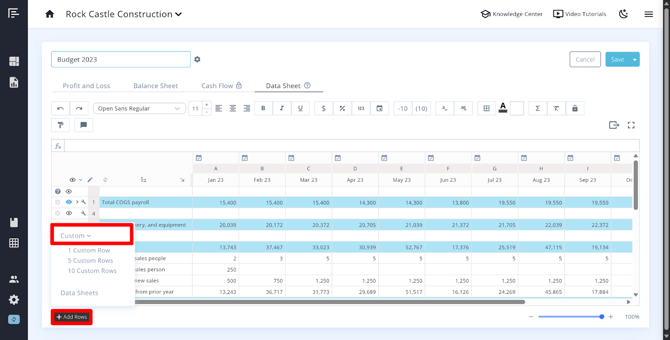
- In the Data Sheets tab, click Add Rows at the bottom
- Add a new custom row
- Enter your formula or calculation in the appropriate cells
- Give the row a descriptive name in the Account/Title column so it's easy to identify later
Simplifying Your View
When working with extensive calculations, you can streamline your workspace:
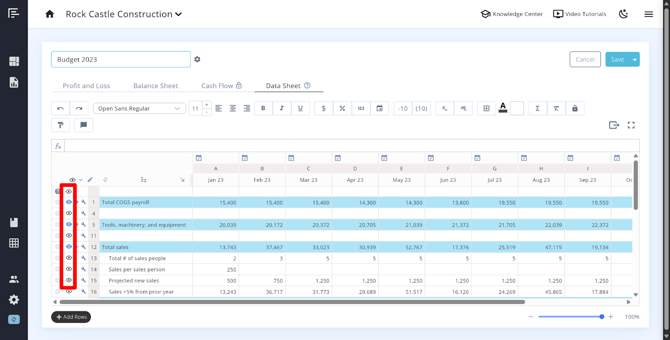
- Hide unnecessary rows: Click the eye icon next to any row to hide it from view. This enables you to display only the rows you need to reference in your budget or forecast
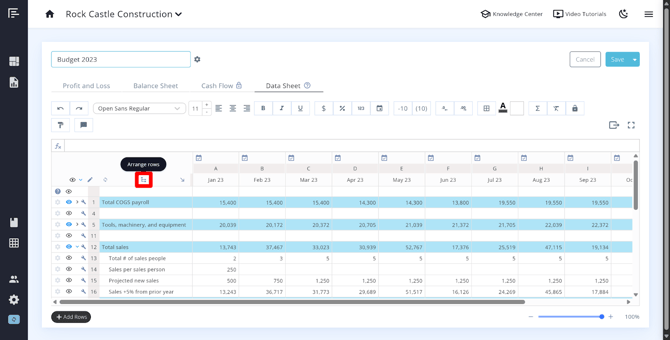
- Arrange rows: Drag rows to reorder them and create groupings for better organization
This keeps your Data Sheet clean and focused on the calculations that matter most.
Linking Data Sheet Calculations to Your Budget/Forecast
Once you've created custom calculations in your Data Sheet, you can link them directly to accounts in your Profit and Loss or Balance Sheet:
- In your budget or forecast, locate the account you want to link
- Click the gear icon next to that account
- Select Link to Data Sheet
- Choose the calculation you want to apply from the dropdown menu
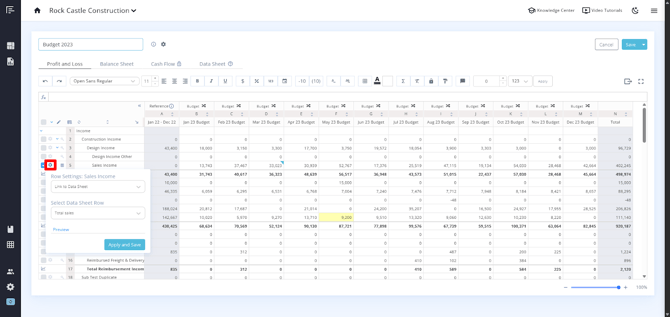
This powerful feature allows your budget/forecast Data Sheet calculations to automatically populate in your budget/forecast accounts, making your planning more dynamic and integrated.
Incorporating External Data from Sheets
Google Sheets or Excel
You can bring data from Google Sheets or Excel files directly into your Budget/Forecast Data Sheets, adding even more flexibility to your planning.
Prerequisites:
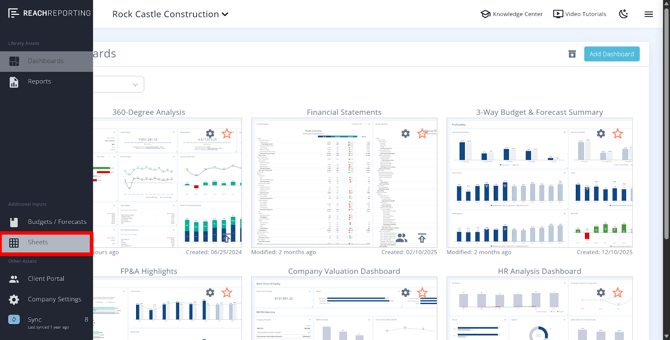
- You must already have a Google Sheet or Excel file added in the Sheets section (accessible from the left navigation bar when a company is open)
- Make sure your external sheet follows Reach Reporting's formatting requirements (see our Google Sheet Data Sheets or Excel Data Sheets articles for details)
- The external sheet must cover the same time frame as the budget or forecast you're working on
To add external data to your Budget/Forecast Data Sheet:
- Open your budget or forecast
- Navigate to the Data Sheets tab
- Scroll to the bottom and click Add Rows and select Data Sheets
- In the Data Picker, select your connected Google Sheet or Excel file
- Choose the specific rows of data you want to include
- Click Save
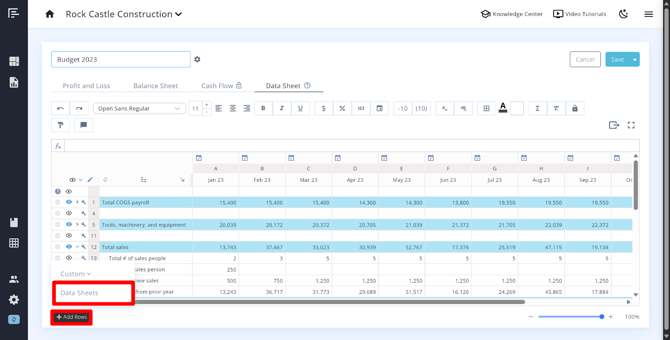
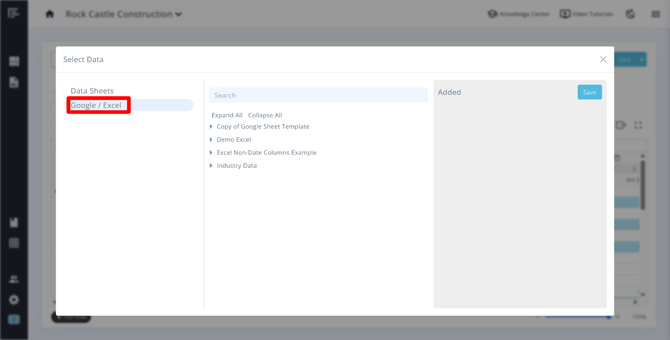
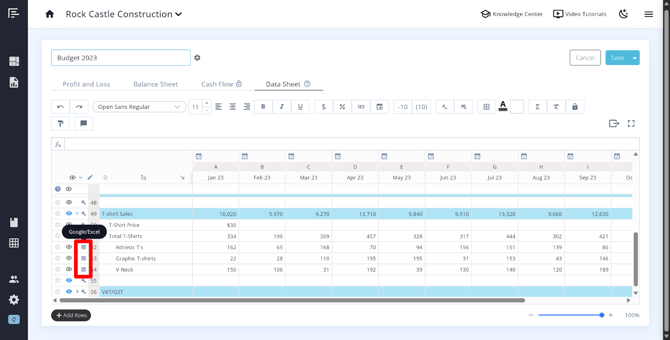
The selected data will now appear in your Budget/Forecast Data Sheet, where you can use it to drive calculations or reference it in your budget accounts. Google/Excel referenced rows are indicated by a table icon:
Data Sheets
Similar to Google and Excel Sheets, you can use Reach’s internal Data Sheets to incorporate data into your Budget/Forecast Data Sheets.
To add Data Sheet data to your Budget/Forecast Data Sheet:
- Open your budget or forecast
- Navigate to the Data Sheets tab
- Scroll to the bottom and click Add Rows and select Data Sheets
- In the Data Picker, select your Data Sheet
- Choose the specific rows of data you want to include
- Click Save
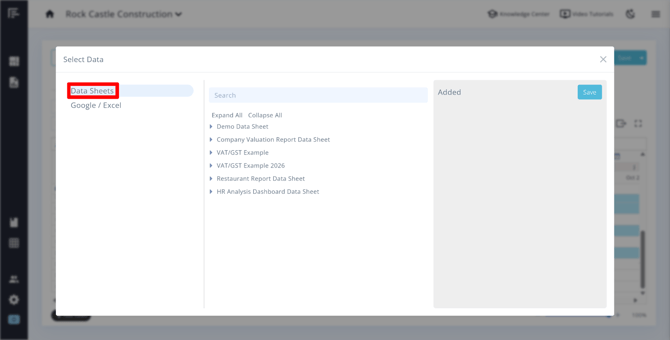
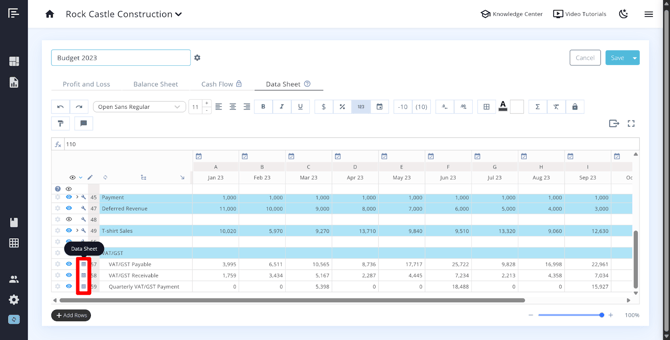
The selected data will now appear in your Budget/Forecast Data Sheet, where you can use it to drive calculations or reference it in your budget accounts. Data Sheet referenced rows are indicated by a table icon:
Important Note: You can only link custom rows from Data Sheets into your Budget/Forecast Data Sheets. You cannot link actuals directly. If you need actuals in your Budget/Forecast Data Sheets, you have two options:
- Copy and paste actuals from your financial statements into the Budget/Forecast Data Sheets
- Include actuals in your standard Data Sheets, perform calculations there, and then link those custom calculations to your Budget/Forecast Data Sheets:
You can also include budget/forecast data within the standard Data Sheets to perform calculations, and then link those custom calculations to your Budget/Forecast Data Sheets. If you are using budget/forecast data within the standard Data Sheets and the budget/forecast data has been updated:
- Open the budget/forecast where the data has been referenced and save
- Open the standard Data Sheet to refresh the budget/forecast reference data and save
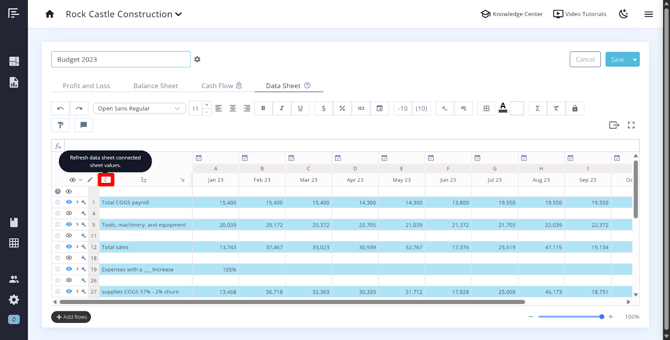
- Open the budget/forecast, refresh the Budget/Forecast Data Sheet, and save:
Refreshing Referenced Data
If changes are made to your connected Google Sheets, Excel files, or Data Sheet references, you'll need to refresh the data in the Sheets tab, and then refresh the data in your Budget/Forecast Data Sheet. Check out our Knowledge Center article on Budgeting with Reference Data for more information on how to refresh the referenced data.
Best Practices
- Name your calculations clearly: Use descriptive names in the Account/Title column to make calculations easy to identify and reference
- Organize logically: Arrange rows in a sequence that makes sense for your workflow. You can also use the eye icons to hide unnecessary rows, allowing you to display only the rows you need to reference
- Document your assumptions: Use comments or separate documentation to explain complex formulas
- Test scenarios separately: Consider creating multiple versions of your budget to compare different planning assumptions
- Keep external sheets updated: Regularly sync or refresh external data sources to maintain accuracy
- Start simple: Begin with straightforward calculations before building more complex models
Go to the Reach Reporting app>
ARE YOU NOT CURRENTLY USING REACH REPORTING?
learn more at reachreporting.com
We are dedicated to helping you.
- Need Additional Help?
Your success is important to us.
Whether you're working as a CFO of a business or part of an accounting firm, Reach Reporting is here to improve your working knowledge of reporting and provide service tips and skills to ensure you're at the top of your game.
We make sure that you have access to staff members who are best suited to help you. We work together to resolve issues and create memorable moments that empower you to enhance your reporting skills.
We are here to listen to you. We understand that using new technology can be frustrating, so we can answer questions or jump on a quick Zoom call. Our entire staff has an in-depth knowledge of Reach Reporting and can quickly direct you to best practices to improve your reporting.
We are focused on providing solutions that save you time and increase your value. We continue to improve each day and look forward to visiting with you. Your communication with us is vital and appreciated.
Please feel free to chat with us by clicking the help chat bubble in the lower right-hand corner of this page.
Reach out to your Reach Reporting Rep and schedule a Zoom meeting by clicking the meeting link in their email signature.
Or schedule to join our ongoing webinars.
Reach Reporting is dedicated to helping provide a knowledge base that is easy to understand and informative. If you still have questions that have not been answered, please let us know by emailing support@reachreporting.com, chatting with our support team, or calling us at (877) 467-7637. We are here to ensure that you have a positive experience with Reach Reporting, as we want to continue to be the reporting solution you trust.
Need more access to Reach Reporting Resources?
Reach Reporting has a wealth of knowledge and a robust online community to support you as you create reports that provide powerful insight. Please look into the following resources.
Reach Reporting Blog: We add blogs to our site every month to give you great information in a fun and friendly manner.
Case Studies: We interview one company per month to help our clients highlight how they are using Reach Reporting and how it is improving their services and firm offerings. These case studies are invaluable to our community.
Knowledge Center: From simple to complicated, we provide step-by-step guidance to utilize every aspect of Reach Reporting in our robust knowledge center.
Video Tutorials: We know watching is sometimes easier than reading, which is why all of our tutorials are video-based in the video tutorial section of Reach Reporting and Youtube.
Social Networks: Join us on FaceBook, LinkedIn, Youtube, and Twitter.
Monthly Newsletter: Go to the footer of reachreporting.com and sign up to receive the Reach Reporting newsletters delivered directly to your inbox. Our newsletters cover tips and tricks, current events in accounting, strategies to improve your advisory services, and much more.
We look forward to helping you build insightful reports,
The Reach Reporting Team.