![Asset 1.png]](https://knowledge.reachreporting.com/hs-fs/hubfs/Asset%201.png?height=22&name=Asset%201.png)
In this article:
- Overview
- Setting Your Default QBO Budget in Company Settings
- Using a QBO Budget in a Metric or Statement
- Budgets by Class and Subclasses
- QBO Budgets in Consolidations
- How QBO Budget Data Stays Current
Overview
Reach Reporting integrates directly with QuickBooks Online budgets, syncing your budget data so your reports always reflect your latest plan. Reach automatically syncs your QBO data every rolling 24 hours, but if you make changes in QBO and need them reflected immediately, you can push a manual sync at any time. Reach can pull up to 3 years of past QBO budget data, giving you historical context for year-over-year comparison and multi-year planning.
Setting Your Default QBO Budget in Company Settings
You can set a QBO budget as the default budget for a company so it's automatically applied to budget/forecast columns across your metrics and statements. There is no need to select it manually each time.
To set your default budget:
- Inside your company, click the gear icon in the lower left to open Settings.
- Navigate to the Budget and Forecast Settings section.
- Select your preferred QBO budget as the Default Budget.
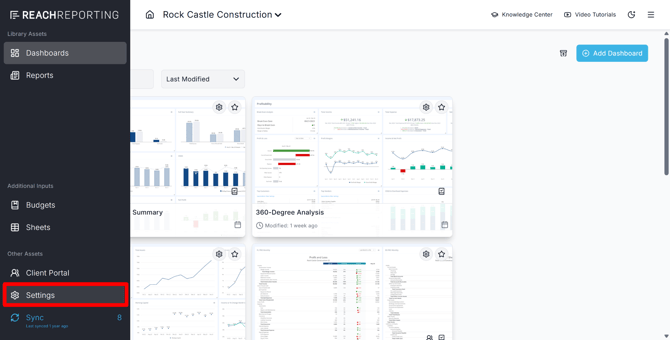
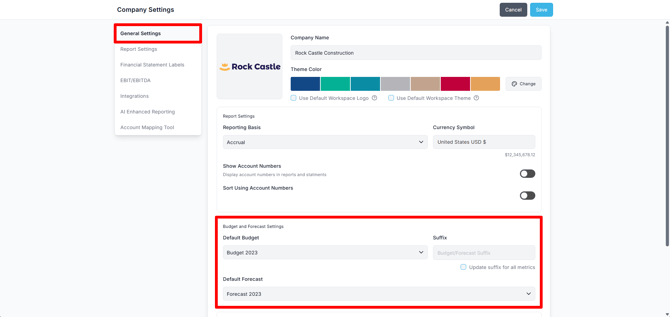
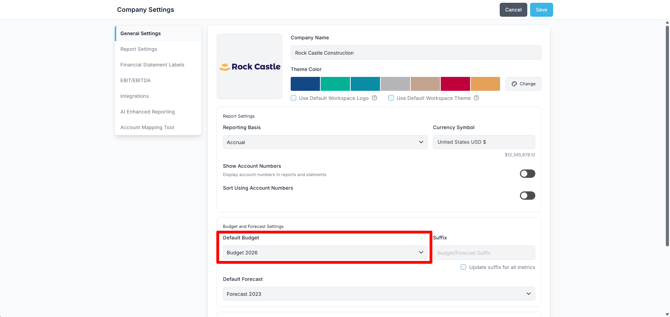
Once set, any new budget/forecast columns you add will automatically pull from this budget. You can always override the default on a column-by-column basis.
Tip: Setting a default budget saves time when working across multiple metrics and statements in the same company.
Using a QBO Budget in a Metric or Statement
To pull your QBO budget data into any metric or statement:
- Open the metric or statement you want to edit.
- Select the Budget/Forecast column type. This can be found by selecting the gear icon in the column header or by clicking Add Columns/Dates.
- Choose the QBO budget you want to use, then select the date range for that column.
- Add a Title or leave it blank to default to showing the applied date range.
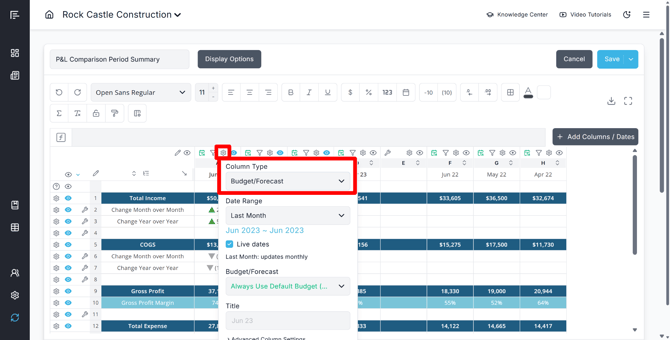
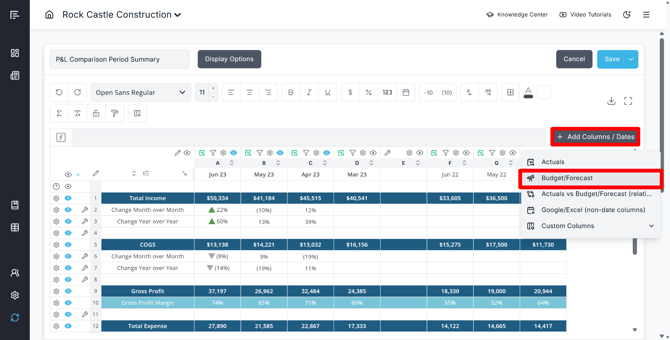
Note: If you are pulling in a Quarterly or Annual Budget, make sure the time frame in Reach matches what is set up in QuickBooks Online. For example, if you build a quarterly budget in QBO but only show one month in Reach, the data will be incorrect. If you are syncing with a monthly budget from QBO and choose to display a quarter or multi-month time period, Reach will handle the calculations automatically.
From there, add the accounts you want to show as rows. These rows can be specific accounts or a full statement. You can also add custom columns with equations to show variance amounts and percentages. To build a formula in any custom cell, type (=) and start typing the formula name.
For more on building metrics and statements, see Building Metrics and Statements with Reach Reporting and Rows and Columns in Reach Reporting.
Budgets by Class and Subclasses
If your QBO budget is organized by class, Reach can pull that class-level detail directly from QBO, including subclasses. This allows you to filter and report on individual classes or departments within your budget.
Note: Subclasses are supported for QBO budgets. However, subclasses are not supported in Budgets Pro. If you need subclass-level budget reporting, your QBO budget is the recommended approach.
For more on budgeting by class, see Budget by Class.
QBO Budgets in Consolidations
When working with a consolidation, you can include QBO budget data at the consolidated level:
- In your consolidation, navigate to the Budgets section of the left navigation bar.
- Select QB as the budget source.
- From there, choose the specific QBO budgets you want to pull in.
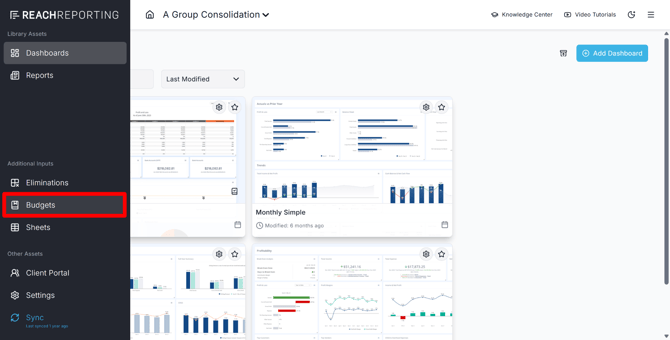
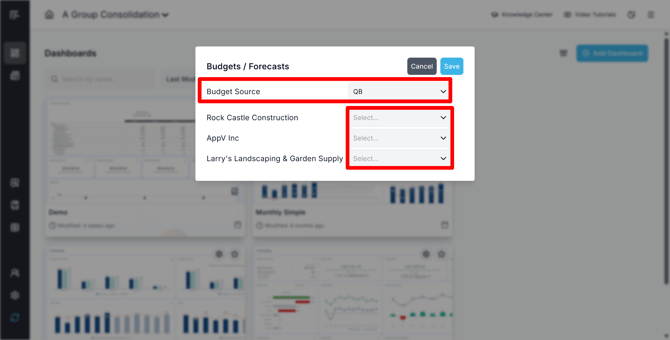
Tip: Budgets and forecasts in consolidations are prepared at the individual company level. Make sure each company's QBO budget is synced before building your consolidated budget view.
For more on budgets in consolidations, see Budgets and Forecasts in Consolidations.
How QBO Budget Data Stays Current
Reach syncs your QBO budget data every rolling 24 hours, so any updates you make in QuickBooks Online will be reflected automatically. If you need changes reflected sooner, you can push a manual sync at any time. You do not need to manually re-select the budget.
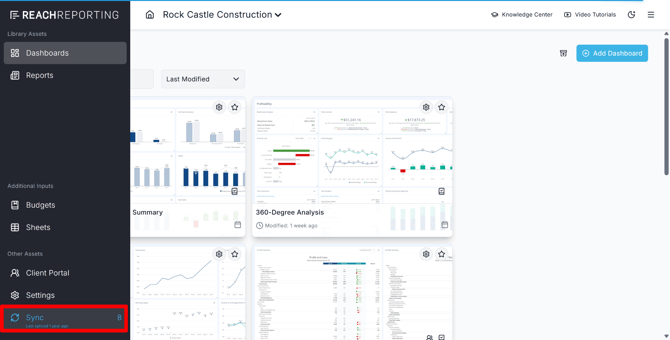
To learn more about syncing, see Syncing Your Company.
Go to the Reach Reporting app>
ARE YOU NOT CURRENTLY USING REACH REPORTING?
learn more at reachreporting.com
We are dedicated to helping you.
- Need Additional Help?
Your success is important to us.
Whether you're working as a CFO of a business or part of an accounting firm, Reach Reporting is here to improve your working knowledge of reporting and provide service tips and skills to ensure you're at the top of your game.
We make sure that you have access to staff members who are best suited to help you. We work together to resolve issues and create memorable moments that empower you to enhance your reporting skills.
We are here to listen to you. We understand that using new technology can be frustrating, so we can answer questions or jump on a quick Zoom call. Our entire staff has an in-depth knowledge of Reach Reporting and can quickly direct you to best practices to improve your reporting.
We are focused on providing solutions that save you time and increase your value. We continue to improve each day and look forward to visiting with you. Your communication with us is vital and appreciated.
Please feel free to chat with us by clicking the help chat bubble in the lower right-hand corner of this page.
Reach out to your Reach Reporting Rep and schedule a Zoom meeting by clicking the meeting link in their email signature.
Or schedule to join our ongoing webinars.
Reach Reporting is dedicated to helping provide a knowledge base that is easy to understand and informative. If you still have questions that have not been answered, please let us know by emailing support@reachreporting.com, chatting with our support team, or calling us at (877) 467-7637. We are here to ensure that you have a positive experience with Reach Reporting, as we want to continue to be the reporting solution you trust.
Need more access to Reach Reporting Resources?
Reach Reporting has a wealth of knowledge and a robust online community to support you as you create reports that provide powerful insight. Please look into the following resources.
Reach Reporting Blog: We add blogs to our site every month to give you great information in a fun and friendly manner.
Case Studies: We interview one company per month to help our clients highlight how they are using Reach Reporting and how it is improving their services and firm offerings. These case studies are invaluable to our community.
Knowledge Center: From simple to complicated, we provide step-by-step guidance to utilize every aspect of Reach Reporting in our robust knowledge center.
Video Tutorials: We know watching is sometimes easier than reading, which is why all of our tutorials are video-based in the video tutorial section of Reach Reporting and Youtube.
Social Networks: Join us on FaceBook, LinkedIn, Youtube, and Twitter.
Monthly Newsletter: Go to the footer of reachreporting.com and sign up to receive the Reach Reporting newsletters delivered directly to your inbox. Our newsletters cover tips and tricks, current events in accounting, strategies to improve your advisory services, and much more.
We look forward to helping you build insightful reports,
The Reach Reporting Team.