---
title: Building Metrics and Statements with Reach Reporting
description: Building Metrics and Statements with Reach Reporting Main features within the editing/creating of metrics and statements.
---
[Skip to content](https://knowledge.reachreporting.com/building-metrics-and-statements-with-reach-reporting#main-content)
![Asset 1.png\]](https://knowledge.reachreporting.com/hs-fs/hubfs/Asset%201.png?height=22&name=Asset%201.png)
Open main navigation
Close main navigation
- [Go to reachreporting.com](https://reachreporting.com/)
[Go to reachreporting.com](https://reachreporting.com/)
How can we help improve your Reach?
- There are no suggestions because the search field is empty.
1. [Knowledge Center](https://knowledge.reachreporting.com/?hsLang=en)
2. [Metrics/Statement Builder](https://knowledge.reachreporting.com/metrics-statement-builder?hsLang=en)
# Building Metrics and Statements with Reach Reporting
## Main features within the editing/creation of metrics and statements.
### **Building Metrics and Statements with Reach Reporting**
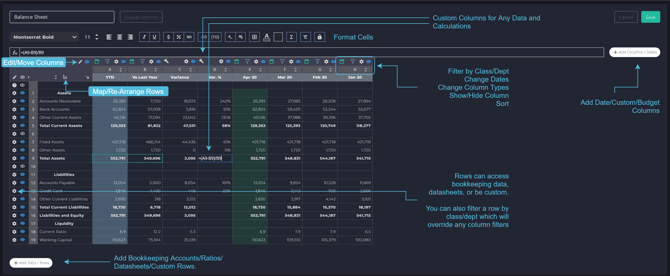
Below are a couple of images to help you see the different abilities within the [metric](https://knowledge.reachreporting.com/using-metrics-in-the-reach-reporting-builder?hsLang=en)/[statement](https://knowledge.reachreporting.com/using-statements-in-reach-reporting?hsLang=en) builder. You can also check out this Knowledge Center article for more on [Metric Builder Shortcuts](https://knowledge.reachreporting.com/metric-builder-shortcuts?hsLang=en).
**When Building Metrics and Statements, You Can:**
Add Custom, Date Range, or Non-Date Columns
[Filter by Class/Dept on Columns and Rows](https://knowledge.reachreporting.com/classes-departments-and-locations?hsLang=en)
Easily change column types
Show/Hide Columns and Rows
Sort ascending or descending
Map/Re-Arrange Rows
Format cells
Add Data/Account Rows/Reference [Data-sheets](https://knowledge.reachreporting.com/the-power-of-reach-reporting-data-sheets?hsLang=en).
Add Custom Rows
Perform Calculations
Add Display Options
- [Row Change](https://knowledge.reachreporting.com/display-options-row-change?hsLang=en)
- [Date Drop-down Ability](https://knowledge.reachreporting.com/display-options-date-drop-down-ability?hsLang=en)
- [Class/Dept Filter Override](https://knowledge.reachreporting.com/display-options-class/dept-filter-override?hsLang=en)
****
### **Preview and Additional Settings**
The additional settings available depend on whether you are working with a Metric or a Financial Statement. The sections below describe the full set of options for Metrics.
### **Metrics**
**Type Options**
- Table
- Column Chart
- Line
- Bar
- Scatter
- Pie
**Table Type**
- Multiple Titles
- Only show non-zero values option
- Striped Rows
- Columns Lines
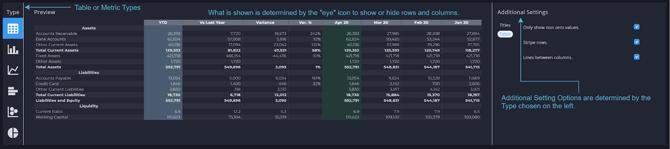
**Chart Options**
- Multiple Titles
- Stacked Charts for column and bar types.
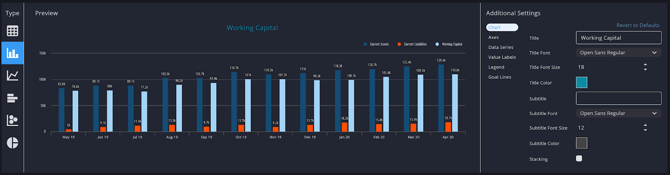
**Axes**
- Invert
- Format X, Y, and Right Y axis
- Set min and max for Y axis

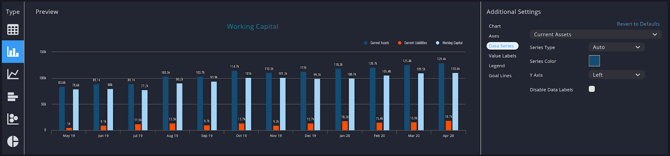
**Data Series**
- Mix chart types
- Set Colors
- Set Axis
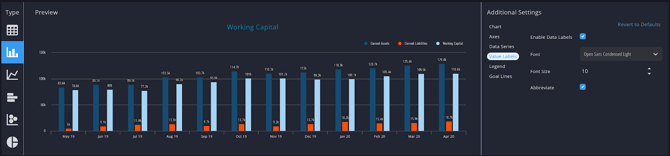
**Value Labels**
- Enable
- Format
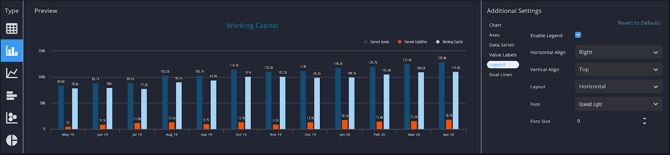
**Legend**
- Enable
- Format
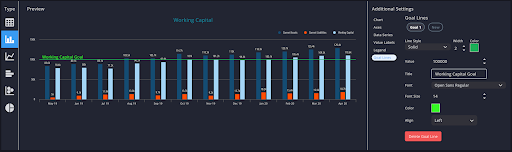
**Goal Lines**
- Enable
- Customize
- *Not available on Table/Pie chart.*
### **Build Metrics Faster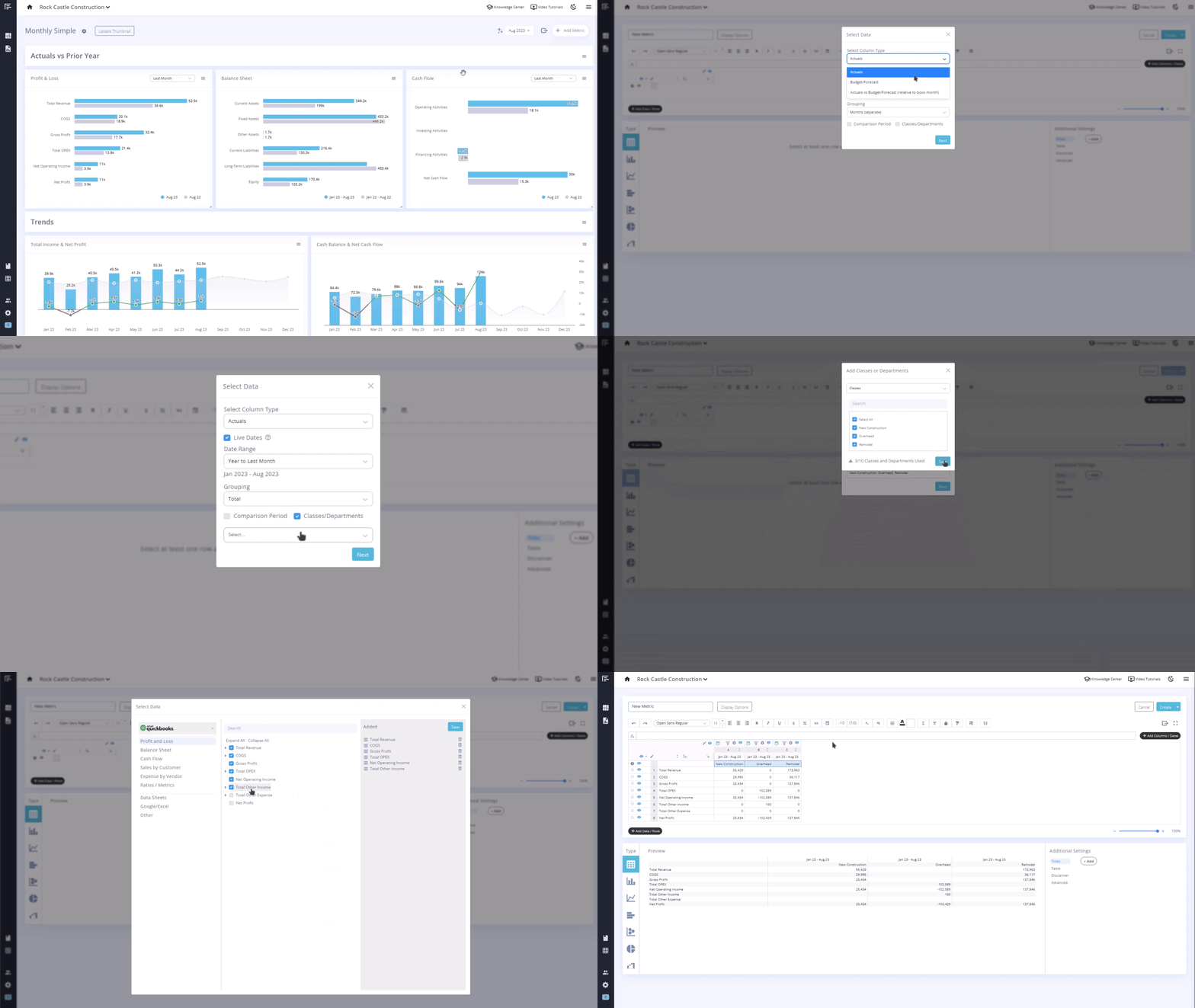**
You can create columns separated by Classes/Departments with a single click, when building new metrics or adding columns to existing metrics. This provides faster insights with no extra setup.
### **Multi-Select in Data Picker**
**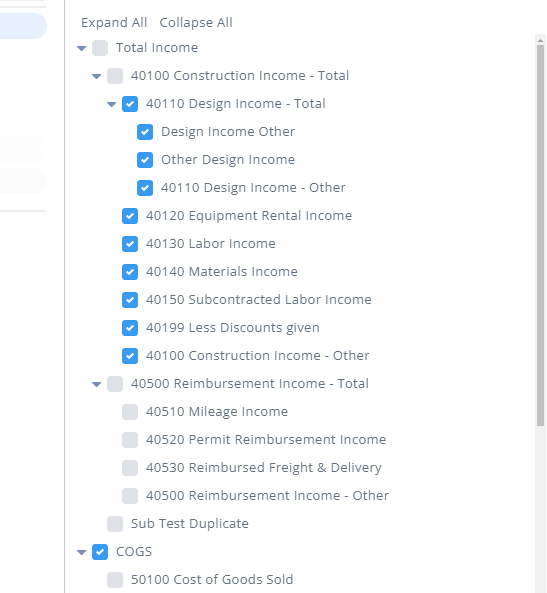**
Users can quickly select a range of accounts by holding down the shift key while clicking. This simplifies the process of data selection, saving time and improving overall workflow efficiency within the data picker interface.
### **Right Click to Insert Columns**
**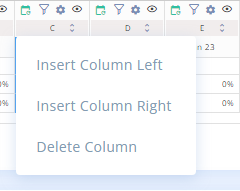**
Users can insert new columns effortlessly by right-clicking on column headings, akin to the existing functionality for rows. This simplifies data organization and enhances user efficiency within spreadsheets.
### **Show Zeros in Bar Charts**
**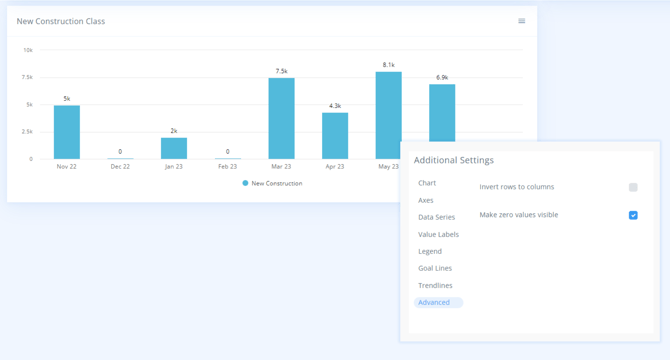**
The Additional Settings \> Advanced allows users to display 0 values on Bar charts, providing users with more comprehensive data visualization options.
### [**Go to the Reach Reporting app\>**](https://app.reachreporting.com/login)
ARE YOU NOT CURRENTLY USING REACH REPORTING?
[learn more at reachreporting.com](https://reachreporting.com/)
### **We are dedicated to helping you.**
\- Need Additional Help?
*Your success is important to us.*
Whether you're working as a CFO of a business or part of an accounting firm, Reach Reporting is here to improve your working knowledge of reporting and provide service tips and skills to ensure you're at the top of your game.
We make sure that you have access to staff members who are best suited to help you. We work together to resolve issues and create memorable moments that empower you to enhance your reporting skills.
We are here to listen to you. We understand that using new technology can be frustrating, so we can answer questions or jump on a quick Zoom call. Our entire staff has an in-depth knowledge of Reach Reporting and can quickly direct you to best practices to improve your reporting.
We are focused on providing solutions that save you time and increase your value. We continue to improve each day and look forward to visiting with you. Your communication with us is vital and appreciated.
Please feel free to chat with us by clicking the help chat bubble in the lower right-hand corner of this page.
Reach out to your Reach Reporting Rep and schedule a Zoom meeting by clicking the meeting link in their email signature.
Or schedule to join our [ongoing webinars](https://reachreporting.com/webinars).
Reach Reporting is dedicated to helping provide a knowledge base that is easy to understand and informative. If you still have questions that have not been answered, please let us know by emailing support@reachreporting.com, chatting with our support team, or calling us at [(877) 467-7637](https://www.google.com/search?q=reach+reporting&rlz=1C1CHBF_enUS910US910&oq=reach+reporting&aqs=chrome..69i57j46i67i175i199j0i512l2j69i65l2j69i61j69i65.2687j0j4&sourceid=chrome&ie=UTF-8#). We are here to ensure that you have a positive experience with Reach Reporting, as we want to continue to be the reporting solution you trust.
### **Need more access to Reach Reporting Resources?**
Reach Reporting has a wealth of knowledge and a robust online community to support you as you create reports that provide powerful insight. Please look into the following resources.
Reach Reporting Blog: We add[blogs](https://reachreporting.com/blog) to our site every month to give you great information in a fun and friendly manner.
Case Studies: We regularly feature client interviews to highlight how companies are using Reach Reporting and how it is improving their services and firm offerings. These[case studies](https://reachreporting.com/case-studies) are invaluable to our community.
Knowledge Center: From simple to complicated, we provide step-by-step guidance to utilize every aspect of Reach Reporting in our robust[knowledge center.](https://knowledge.reachreporting.com/?hsLang=en)
Video Tutorials: We know watching is sometimes easier than reading, which is why all of our tutorials are video-based in the[video tutorial section](https://reachreporting.com/training-videos) of Reach Reporting and[Youtube](https://www.youtube.com/channel/UCVoqUVWnR1KZlNw3nXu_0AA?view_as=subscriber).
Social Media: Join us on[Facebook](https://www.facebook.com/reachreporting/),[LinkedIn](https://www.linkedin.com/company/reach-reporting/),[Youtube](https://www.youtube.com/channel/UCVoqUVWnR1KZlNw3nXu_0AA?view_as=subscriber), and[X (Twitter)](https://twitter.com/reachreporting).
Monthly Newsletter: Go to the footer of [reachreporting.com](https://reachreporting.com/) and sign up to receive the Reach Reporting newsletters delivered directly to your inbox. Our newsletters cover tips and tricks, current events in accounting, strategies to improve your advisory services, and much more.
We look forward to helping you build insightful reports,
The Reach Reporting Team.
- [General Info](https://knowledge.reachreporting.com/general-info?hsLang=en#main-content)
- [Company Settings](https://knowledge.reachreporting.com/general-info?hsLang=en#company-settings)
- [Billing](https://knowledge.reachreporting.com/general-info?hsLang=en#billing)
- [Troubleshooting](https://knowledge.reachreporting.com/general-info?hsLang=en#troubleshooting)
- [Integrations](https://knowledge.reachreporting.com/integrations?hsLang=en#main-content)
- [QuickBooks Online](https://knowledge.reachreporting.com/integrations?hsLang=en#quickbooks-online)
- [XERO](https://knowledge.reachreporting.com/integrations?hsLang=en#xero)
- [Digits](https://knowledge.reachreporting.com/integrations?hsLang=en#digits)
- [QuickBooks Desktop](https://knowledge.reachreporting.com/integrations?hsLang=en#quickbooks-desktop)
- [CSV Trial Balance](https://knowledge.reachreporting.com/integrations?hsLang=en#csv-trial-balance)
- [Gusto](https://knowledge.reachreporting.com/integrations?hsLang=en#gusto)
- [MYOB](https://knowledge.reachreporting.com/integrations?hsLang=en#myob)
- [Workspaces](https://knowledge.reachreporting.com/workspaces?hsLang=en#main-content)
- [Companies](https://knowledge.reachreporting.com/workspaces?hsLang=en#companies)
- [Users](https://knowledge.reachreporting.com/workspaces?hsLang=en#users)
- [Troubleshooting](https://knowledge.reachreporting.com/workspaces?hsLang=en#troubleshooting)
- [Dashboards](https://knowledge.reachreporting.com/dashboards?hsLang=en)
- [Reports](https://knowledge.reachreporting.com/reports?hsLang=en#main-content)
- [Getting Started](https://knowledge.reachreporting.com/reports?hsLang=en#getting-started)
- [Report Builder Elements](https://knowledge.reachreporting.com/reports?hsLang=en#report-builder-elements)
- [Metrics/Statement Builder](https://knowledge.reachreporting.com/metrics-statement-builder?hsLang=en#main-content)
- [Display Options](https://knowledge.reachreporting.com/metrics-statement-builder?hsLang=en#display-options)
- [AR/AP Aging](https://knowledge.reachreporting.com/metrics-statement-builder?hsLang=en#ar-ap-aging)
- [Customizing a Metric](https://knowledge.reachreporting.com/metrics-statement-builder?hsLang=en#customizing-a-metric)
- [Sheets](https://knowledge.reachreporting.com/sheets?hsLang=en)
- [Budget / Forecast](https://knowledge.reachreporting.com/budget-forecast?hsLang=en#main-content)
- [Getting Started](https://knowledge.reachreporting.com/budget-forecast?hsLang=en#getting-started)
- [Integrations](https://knowledge.reachreporting.com/budget-forecast?hsLang=en#integrations)
- [Using Budgets/Forecasts](https://knowledge.reachreporting.com/budget-forecast?hsLang=en#using-budgets-forecasts)
- [Consolidations](https://knowledge.reachreporting.com/consolidations?hsLang=en)
- [Client Portal](https://knowledge.reachreporting.com/client-portal?hsLang=en)
- [AI Enhanced Reporting Info](https://knowledge.reachreporting.com/ai-enhanced-reporting-info?hsLang=en)
- [New Features and Updates](https://knowledge.reachreporting.com/new-features-and-updates?hsLang=en)
- [AI Connectors](https://knowledge.reachreporting.com/ai-connectors?hsLang=en)
[](https://reachreporting.com/)
Reach Reporting Help Center
Copyright © 2026, Reach Reporting