![Asset 1.png]](https://knowledge.reachreporting.com/hs-fs/hubfs/Asset%201.png?height=22&name=Asset%201.png)
In this article:
Accessing Reference Data Settings
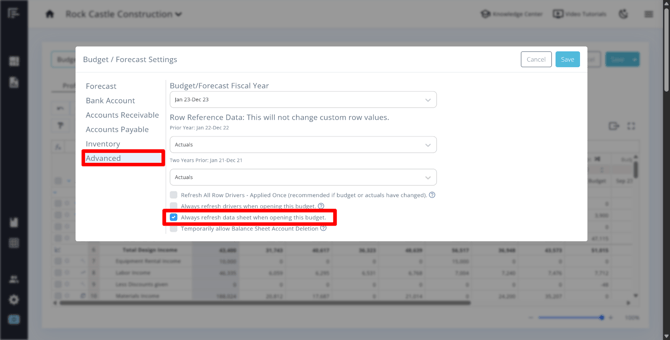
The row reference data will automatically populate with actuals from the prior two years. You can instead use Budget or Forecast data from the prior two years by going to Advanced Settings in your budget. This setting controls the reference data your drivers use.
Modifying the row reference data settings is especially important when creating Multi-Year Budgets, as it determines how future years are calculated. For more information, see our Multi-Year Budget Creation Guide.
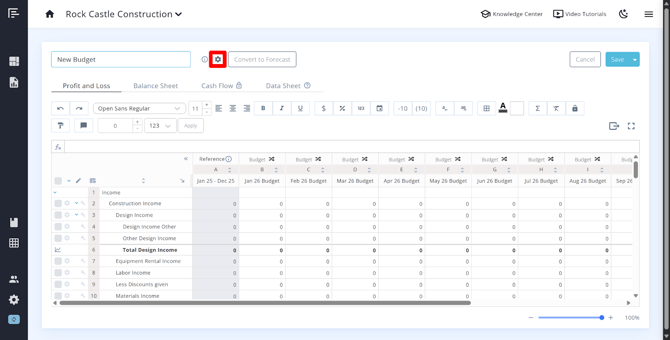
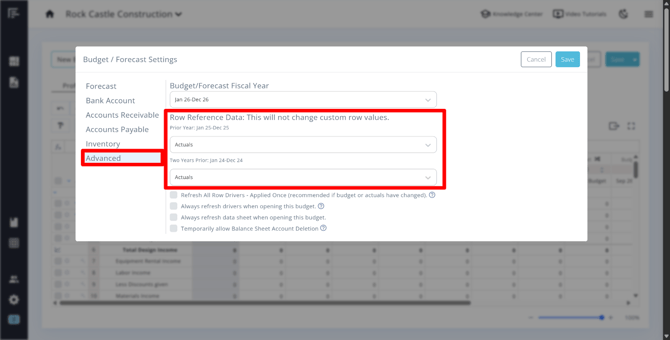
Important: Row reference data settings will not affect values you've entered manually in custom rows—only rows using automated drivers that reference prior data, such as those set to the Based on Previous Year or Forecast Algorithm, will update based on these settings.
Refreshing Row Drivers
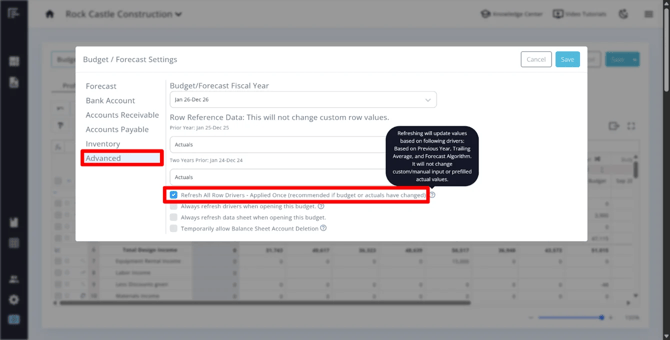
When budgets are connected, changes don't flow automatically. After refreshing the row drivers, be sure to Save the budget/forecast. Row drivers can be refreshed in three different ways, depending on your needs:
Refresh Once
In the Advanced Settings, check "Refresh all row drivers - Applied Once" and save (refreshes both statements simultaneously)
- Best for: Creating a baseline budget that won't change as new actuals come in
Always Refresh When Opening
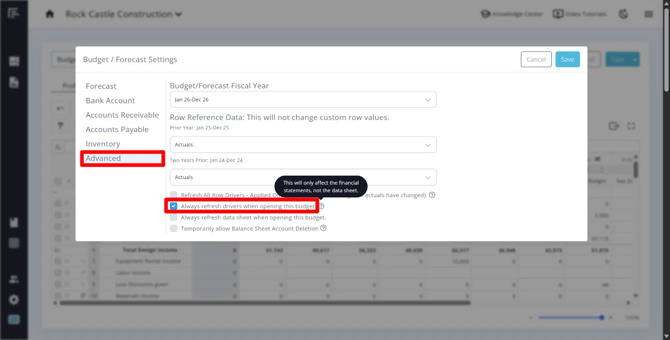
You can configure your budget to refresh drivers automatically whenever the budget is opened. This is particularly helpful if your referenced actuals and budget data change frequently, ensuring you're always working with the most current projections.
- Best for: Rolling forecasts that need to stay current with the latest actual data
Manual Refresh
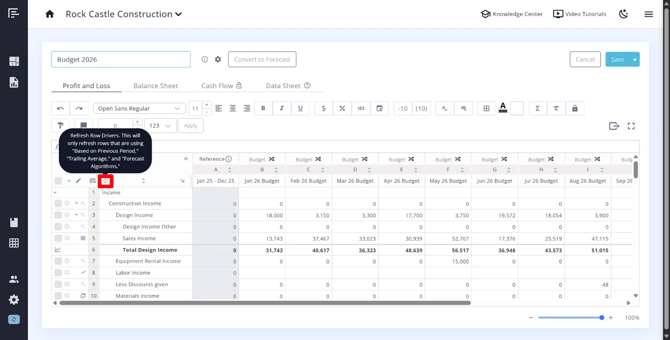
You can manually refresh drivers at any time by clicking the refresh icon in your budget P&L or Balance Sheet. This gives you control over exactly when driver calculations update.
- Best for: Situations where you want to review changes before accepting them, or when you're making frequent adjustments to reference data
Refreshing Data Sheet Referenced Data
If changes are made to your connected Google Sheets, Excel files, or Data Sheet references, you'll need to refresh the data in the Sheets tab, and then refresh the data in your Budget/Forecast Data Sheet:
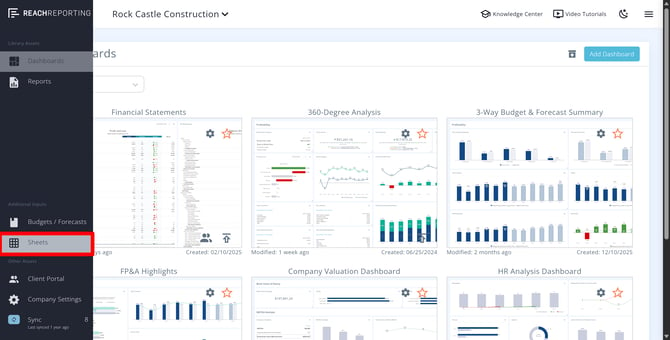
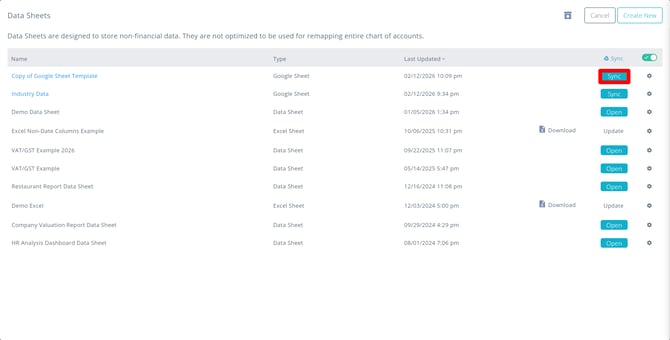
- In the Sheets tab of your company, make sure to Sync your Google Sheet or save any updates to your Excel Sheet or Data Sheet.
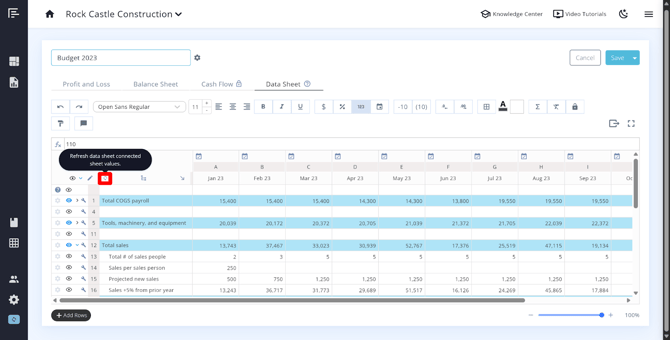
- In the Data Sheets tab of your budget or forecast, look for the refresh option
- Click to Refresh Data Sheet Connected Sheet Values
- This will update your Budget/Forecast Data Sheet with the latest information from your external sources
This ensures your budget or forecast always reflects the most current data from your linked spreadsheets.
You can also enable the option in the Advanced Settings to Always refresh data sheet when opening this budget. After enabling this, the data will auto-refresh each time you open the budget or forecast, and you will need to save the budget or forecast once you have opened it.
Go to the Reach Reporting app>
ARE YOU NOT CURRENTLY USING REACH REPORTING?
learn more at reachreporting.com
We are dedicated to helping you.
- Need Additional Help?
Your success is important to us.
Whether you're working as a CFO of a business or part of an accounting firm, Reach Reporting is here to improve your working knowledge of reporting and provide service tips and skills to ensure you're at the top of your game.
We make sure that you have access to staff members who are best suited to help you. We work together to resolve issues and create memorable moments that empower you to enhance your reporting skills.
We are here to listen to you. We understand that using new technology can be frustrating, so we can answer questions or jump on a quick Zoom call. Our entire staff has an in-depth knowledge of Reach Reporting and can quickly direct you to best practices to improve your reporting.
We are focused on providing solutions that save you time and increase your value. We continue to improve each day and look forward to visiting with you. Your communication with us is vital and appreciated.
Please feel free to chat with us by clicking the help chat bubble in the lower right-hand corner of this page.
Reach out to your Reach Reporting Rep and schedule a Zoom meeting by clicking the meeting link in their email signature.
Or schedule to join our ongoing webinars.
Reach Reporting is dedicated to helping provide a knowledge base that is easy to understand and informative. If you still have questions that have not been answered, please let us know by emailing support@reachreporting.com, chatting with our support team, or calling us at (877) 467-7637. We are here to ensure that you have a positive experience with Reach Reporting, as we want to continue to be the reporting solution you trust.
Need more access to Reach Reporting Resources?
Reach Reporting has a wealth of knowledge and a robust online community to support you as you create reports that provide powerful insight. Please look into the following resources.
Reach Reporting Blog: We add blogs to our site every month to give you great information in a fun and friendly manner.
Case Studies: We interview one company per month to help our clients highlight how they are using Reach Reporting and how it is improving their services and firm offerings. These case studies are invaluable to our community.
Knowledge Center: From simple to complicated, we provide step-by-step guidance to utilize every aspect of Reach Reporting in our robust knowledge center.
Video Tutorials: We know watching is sometimes easier than reading, which is why all of our tutorials are video-based in the video tutorial section of Reach Reporting and Youtube.
Social Networks: Join us on FaceBook, LinkedIn, Youtube, and Twitter.
Monthly Newsletter: Go to the footer of reachreporting.com and sign up to receive the Reach Reporting newsletters delivered directly to your inbox. Our newsletters cover tips and tricks, current events in accounting, strategies to improve your advisory services, and much more.
We look forward to helping you build insightful reports,
The Reach Reporting Team.