![Asset 1.png]](https://knowledge.reachreporting.com/hs-fs/hubfs/Asset%201.png?height=22&name=Asset%201.png)
In this article:
Understanding the Error
When attempting to add a new user to your workspace, you may encounter an error message stating that the user was added as a client. This typically occurs when the user was previously sent an invitation to the Client Portal but hasn't accepted it yet, or their client invitation was removed before they could respond.
This error prevents you from adding them as a workspace user because Reach Reporting recognizes that their email address is already associated with your workspace as a client, rather than as a team member.
How to Fix This Issue
Follow these steps to resolve the error and successfully add the user to your workspace:
Check for Existing Client Invitations
First, you'll need to verify whether the user has a pending client invitation:
- From your workspace home page, click on the company where you're trying to add the user
- Select "Manage Clients" from the options
- Look through the list of clients to see if the user's email address appears there
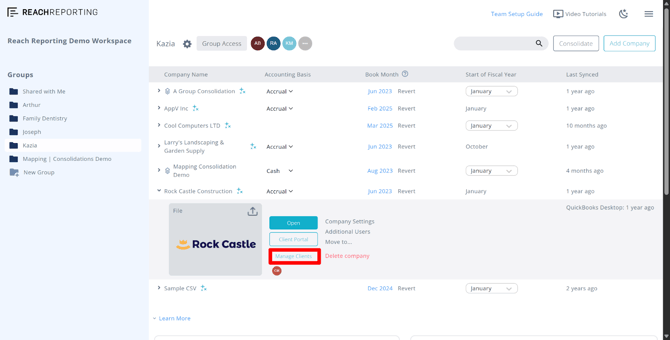
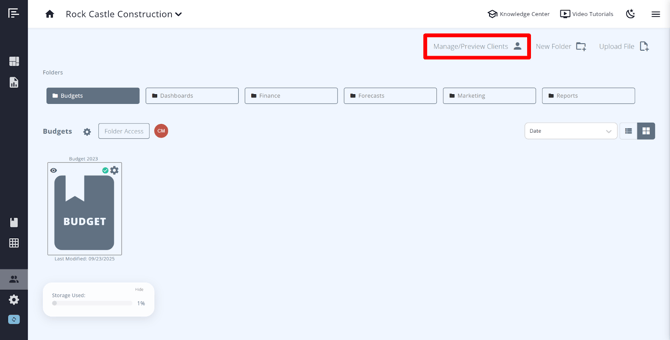
Alternatively, you can check from the Client Portal:
- Navigate to the Client Portal for the company
- Click "Manage/Preview Clients"
- Check if the user appears in the client list
If Pending Invite Exists: Resend the Invitation
If you see the user listed as a client with a pending invitation:
- Click the gear icon next to their name
- Select "Resend Invite"
- Inform the user to check their email and accept the client portal invitation
- Once they've accepted the invitation, check out this Knowledge Center article for how to Change User to Client or Client to User
This will convert their account from a client to a workspace user, allowing them to create and edit reports and dashboards.
If No Pending Invite Found: Send a New Invitation
If you don't see a pending invitation for the user, the original invite was likely removed before they could accept it. In this case:
- From the "Manage Clients" screen, click "Invite New Client"
- Enter the user's email address
- Assign them to the appropriate folder access
- Send the invitation
- Have the user accept the client portal invitation from their email
- Once accepted, check out this Knowledge Center article for how to Change User to Client or Client to User
Important Notes
- A user cannot exist as both a client and a workspace member simultaneously in Reach Reporting
- Always check the Manage Clients section before attempting to add someone as a workspace user
- If you're the workspace owner, you can also check workspace members by clicking the gear icon in the upper right corner and selecting "Workspace Members"
- The option to change a client to a user will only appear if the client has accepted their original invitation
Related Articles
Still Need Help?
If you continue to experience issues after following these steps, please contact our support team. You can reach us by:
- Using the chat feature in the lower right corner of the Reach Reporting application
- Emailing us at support@reachreporting.com
We're here to help ensure your team setup runs smoothly!
Go to the Reach Reporting app>
ARE YOU NOT CURRENTLY USING REACH REPORTING?
learn more at reachreporting.com
We are dedicated to helping you.
- Need Additional Help?
Your success is important to us.
Whether you're working as a CFO of a business or part of an accounting firm, Reach Reporting is here to improve your working knowledge of reporting and provide service tips and skills to ensure you're at the top of your game.
We make sure that you have access to staff members who are best suited to help you. We work together to resolve issues and create memorable moments that empower you to enhance your reporting skills.
We are here to listen to you. We understand that using new technology can be frustrating, so we can answer questions or jump on a quick Zoom call. Our entire staff has an in-depth knowledge of Reach Reporting and can quickly direct you to best practices to improve your reporting.
We are focused on providing solutions that save you time and increase your value. We continue to improve each day and look forward to visiting with you. Your communication with us is vital and appreciated.
Please feel free to chat with us by clicking the help chat bubble in the lower right-hand corner of this page.
Reach out to your Reach Reporting Rep and schedule a Zoom meeting by clicking the meeting link in their email signature.
Or schedule to join our ongoing webinars.
Reach Reporting is dedicated to helping provide a knowledge base that is easy to understand and informative. If you still have questions that have not been answered, please let us know by emailing support@reachreporting.com, chatting with our support team, or calling us at (877) 467-7637. We are here to ensure that you have a positive experience with Reach Reporting, as we want to continue to be the reporting solution you trust.
Need more access to Reach Reporting Resources?
Reach Reporting has a wealth of knowledge and a robust online community to support you as you create reports that provide powerful insight. Please look into the following resources.
Reach Reporting Blog: We add blogs to our site every month to give you great information in a fun and friendly manner.
Case Studies: We interview one company per month to help our clients highlight how they are using Reach Reporting and how it is improving their services and firm offerings. These case studies are invaluable to our community.
Knowledge Center: From simple to complicated, we provide step-by-step guidance to utilize every aspect of Reach Reporting in our robust knowledge center.
Video Tutorials: We know watching is sometimes easier than reading, which is why all of our tutorials are video-based in the video tutorial section of Reach Reporting and Youtube.
Social Networks: Join us on FaceBook, LinkedIn, Youtube, and Twitter.
Monthly Newsletter: Go to the footer of reachreporting.com and sign up to receive the Reach Reporting newsletters delivered directly to your inbox. Our newsletters cover tips and tricks, current events in accounting, strategies to improve your advisory services, and much more.
We look forward to helping you build insightful reports,
The Reach Reporting Team.