![Asset 1.png]](https://knowledge.reachreporting.com/hs-fs/hubfs/Asset%201.png?height=22&name=Asset%201.png)
In this article:
- Overview
- Adding Special Metrics to Your Dashboard or Report
- Configuring Special Metrics
- Customizing Special Metrics
- Using Special Metric Filter Settings
- Use Cases
- Best Practices
- Troubleshooting
Overview
Special Metrics in Reach Reporting are pre-built metric templates that automatically generate ranked lists of your top-performing accounts based on specified criteria. Special Metrics include dynamic filtering options that allow you to adjust date ranges, account quantities, and account types directly from your dashboard view. These metrics provide an efficient way to identify and track key financial contributors, such as top customers, vendors, or expense categories, without manual sorting.
Special Metrics are available through the metric templates library and can be customized using the Metric Builder's specialized controls. They offer interactive filtering capabilities that work in both the standard dashboard view and client portals, making them particularly valuable for collaborative reporting scenarios.
Important Limitations:
- Special Metrics cannot pull top vendors and top customers for Xero and MYOB integrations
- Special Metrics are not available for consolidations
Adding Special Metrics to Your Dashboard or Report
Step 1: Access the Add Metric Function
- Open the dashboard or report where you want to add a Special Metric
- Click the Add Metric button in a dashboard, or navigate to the Metric option in the report toolbar
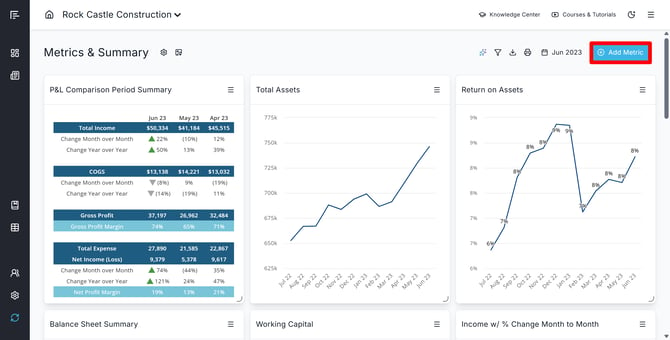
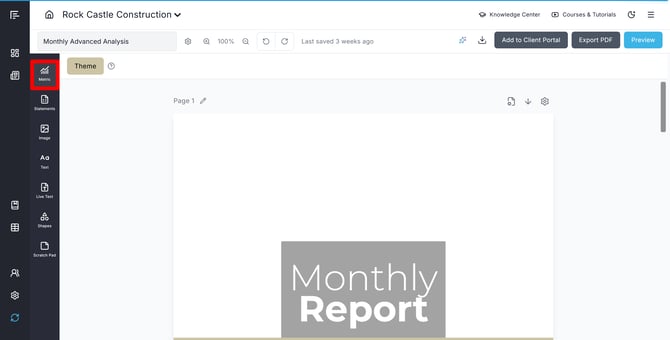
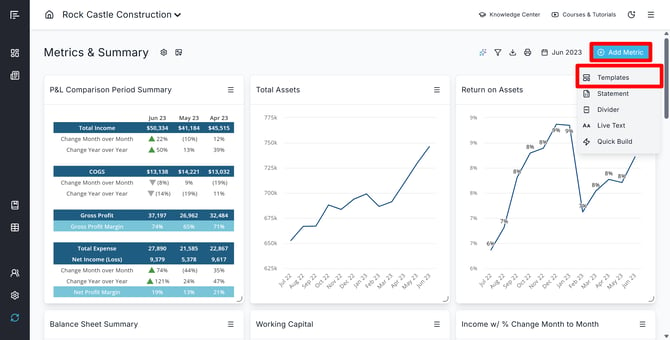
Step 2: Select from Templates
- In the dashboard, click the dropdown menu that appears and select Templates from the options
- Once the Metric Library is open, use the Reach Templates option
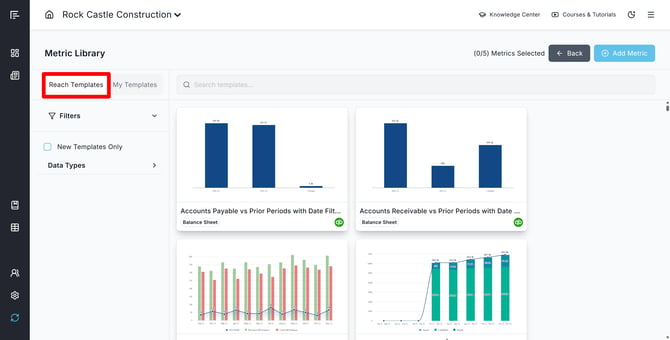
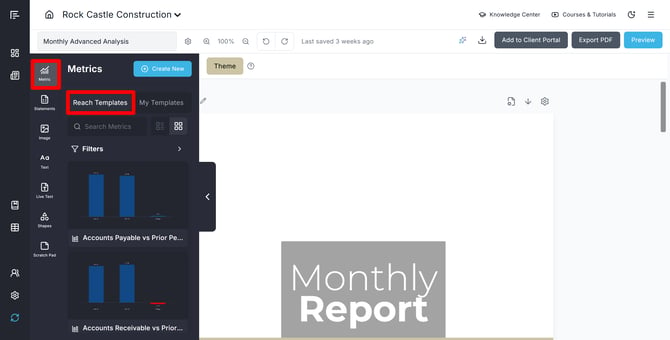
Step 3: Find Special Metrics
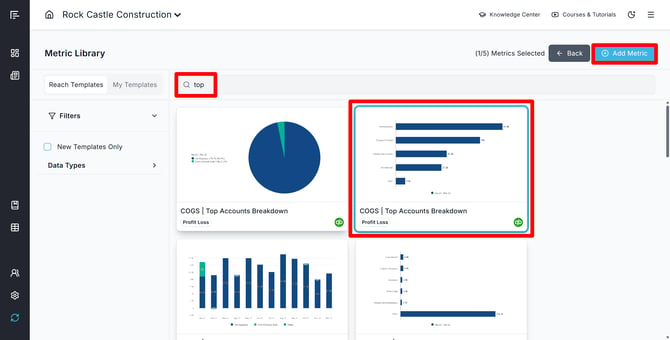
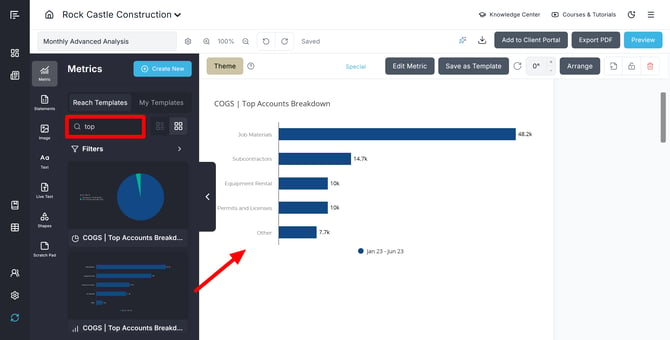
- Use the search function to search for the term "top"
- The results displayed are your available Special Metrics
- Select the Special Metric you want to add and click "Add Metric" to add it to your dashboard, or drag and drop the Special Metric into your report
Configuring Special Metrics
Once you've added a Special Metric to your dashboard or report, you can configure it using the Metric Builder's specialized controls.
Step 1: Open the Metric Builder
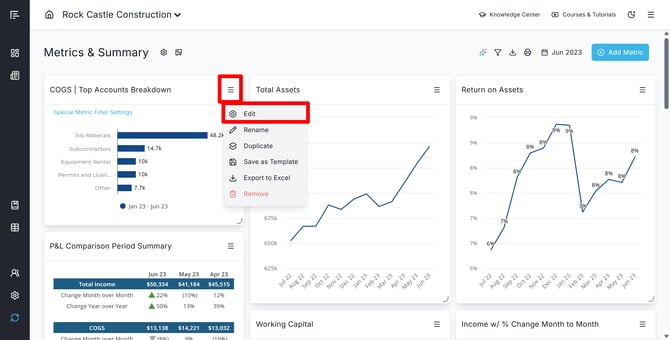
- Click Edit on your newly added Special Metric
- The Metric Builder will open with familiar layout elements
- Note the additional bar of dropdowns and settings beneath the metric title—these are unique to Special Metrics
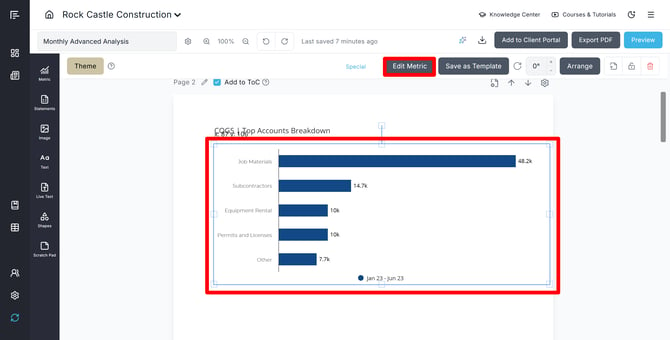
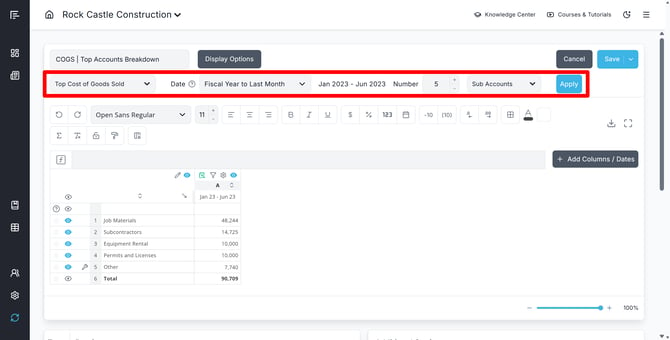
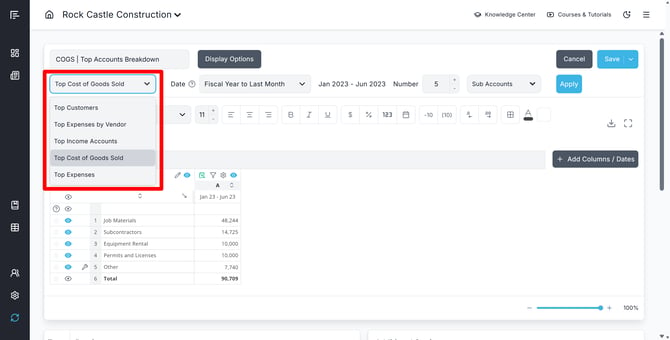
Step 2: Select Your Special Metric Type
- Use the first dropdown to choose which Special Metric you want to build
- Options may include top customers, top vendors, top expense accounts, etc.
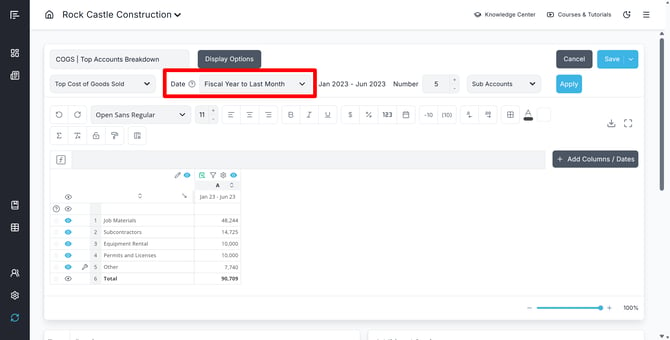
Step 3: Configure Date Range
- Use the second dropdown (to the right of the metric type) to select your date range
- This determines the period from which account data will be generated
Step 4: Set Number of Accounts
- Use the third option to specify how many accounts you wish to display
- This controls the length of your ranked list (e.g., top 5, top 10, etc.)
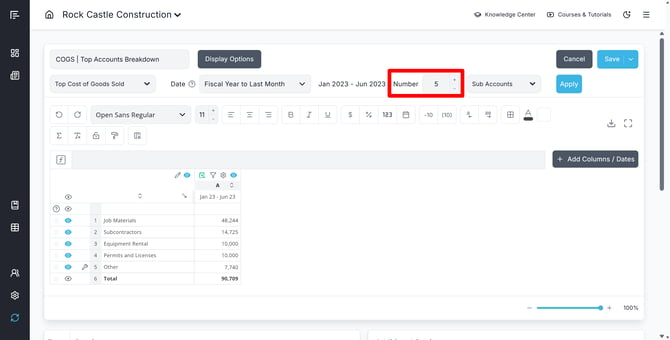
Step 5: Choose Account Type
- Use the fourth dropdown to select whether to show parent accounts or sub-accounts when showing Top Income Accounts, Top Cost of Goods Sold, or Top Expenses
- This determines the level of detail in your results
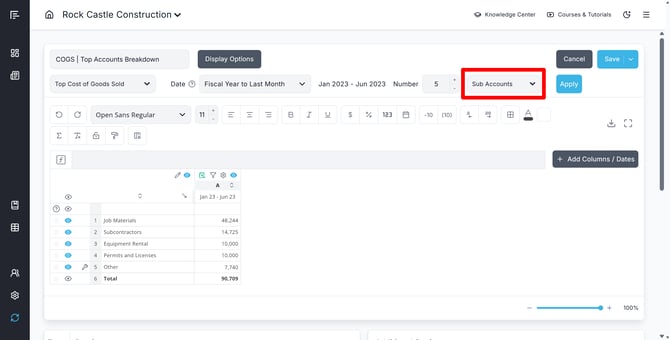
Step 6: Apply to See Changes
- Select the “Apply” button after all fields are set to see changes
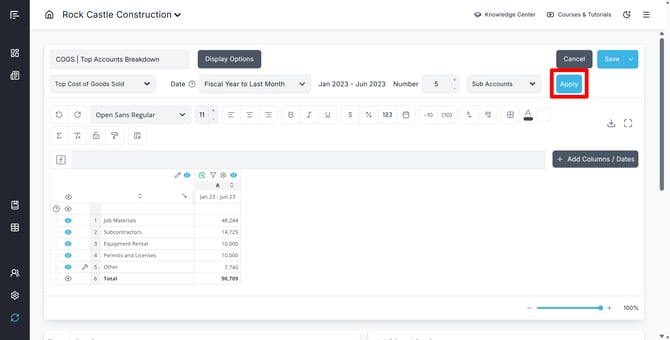
Customizing Special Metrics
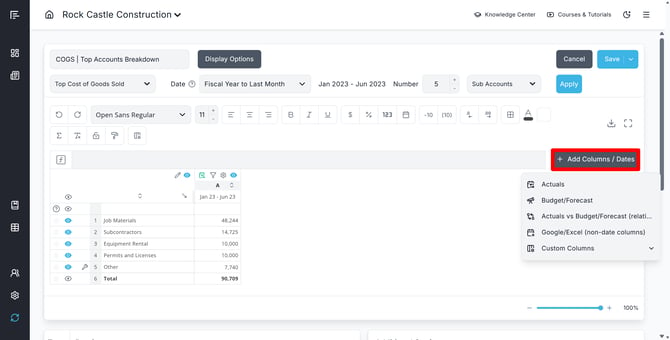
Adding Columns
While Special Metrics have restrictions on certain customizations, you can enhance them with additional columns:
- Unlike standard metrics, you cannot add custom rows to Special Metrics
- You can add additional columns to provide more context or calculations
- Custom columns can include formulas, such as percentages or variance formulas
- This allows you to create a comparative analysis alongside your ranked data
Saving Your Configuration
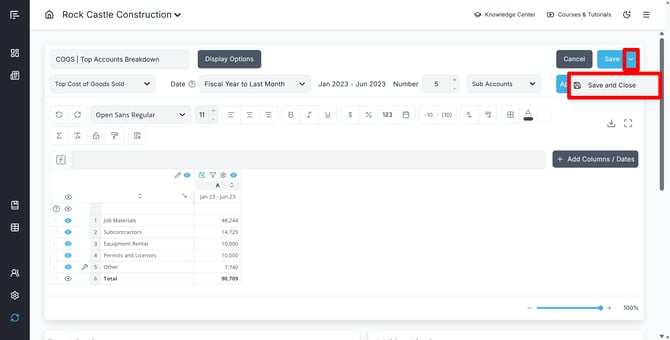
- Once you've finished creating and editing your Special Metric, click Save and Close
- You'll then return to the dashboard or report view with your configured Special Metric displayed
Using Special Metric Filter Settings
Reach Reporting includes interactive filter settings specifically designed for Special Metrics, providing flexibility in both internal and client-facing views.
Accessing Filter Settings
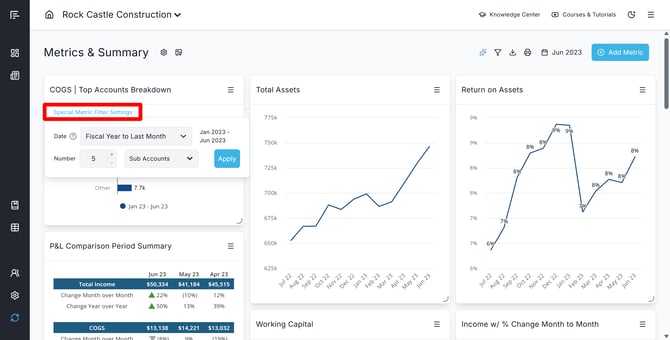
- Locate the filter icon on your Special Metric within the dashboard or report
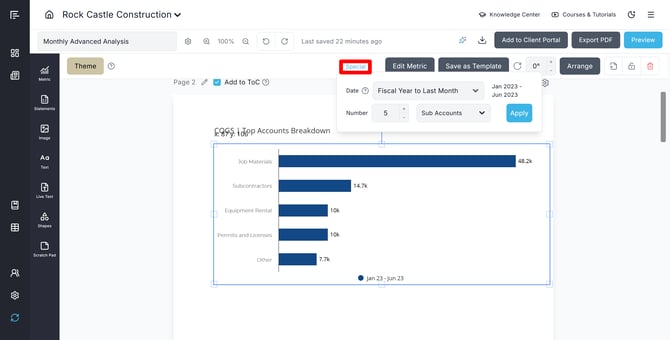
- Click the Special Metric Filter Settings to open the settings panel
Available Filter Options
The filter panel provides quick access to key configuration settings:
- Date Range dropdown: Adjust the time period for account data
- Number of Accounts: Change how many accounts are displayed
- Account Type dropdown: Switch between parent accounts and sub-accounts
Interactive Filtering Benefits
- Filter settings are available directly within the dashboard view
- No need to enter the Metric Builder for quick adjustments
- Provides clients with an interactive element for exploring data
- Allows real-time customization without editing the underlying metric configuration
Use Cases
Sales Performance Tracking
Create a Special Metric showing your top 10 customers by revenue for the current quarter, with an additional column calculating each customer's percentage of total revenue.
Expense Management
Generate a ranked list of your top expense categories to identify where your business is spending the most money, helping prioritize cost-reduction initiatives.
Vendor Analysis
Display top vendors by payment volume to strengthen negotiating positions with key suppliers and identify vendor concentration risks.
Client Reporting
Include Special Metrics in dashboards with interactive filters, allowing clients to adjust date ranges and account quantities to explore their data independently.
Best Practices
Choose Appropriate Account Quantities
Select a number of accounts that provides meaningful insights without overwhelming the viewer—typically 5-10 accounts for executive dashboards, more for detailed analysis
Add Contextual Columns
Enhance Special Metrics with percentage calculations or period comparisons to provide deeper insights beyond simple rankings
Match Date Ranges to Reporting Periods
Align your Special Metric date ranges with your standard reporting periods for consistency across your dashboard
Consider Account Type Carefully
Choose parent accounts for high-level overview reporting and sub-accounts when detailed visibility is needed
Verify Integration Compatibility
Before building Special Metrics for top vendors and customers, confirm your accounting system integration supports this functionality (note limitations with Xero and MYOB, and Consolidations)
Troubleshooting
Special Metrics Not Available in Templates
Issue: Cannot find Special Metrics when searching templates
- Verify you're searching from the Add Metric > Templates menu
- Try searching for "top" in the template search function
- Confirm your integration has access to Special Metrics features
Top Vendors/Customers Not Populating
Issue: Special Metric shows no data for top vendors or customers
- For Xero and MYOB users: These integrations do not support pulling top vendors and top customers data
- Check that your date range includes periods with transaction data
Top Vendors/Customers Numbers Incorrect
- These numbers come from the "Summary Sales by Customer" and "Summary Expense by Vendor" reports in QuickBooks.
- Verify numbers against those reports. If wrong, review Troubleshooting Numbers Not Matching in Reach Reporting article.
Special Metrics Not Working in Consolidations
Issue: Cannot add or view Special Metrics in consolidated reports
- Special Metrics are not available for consolidations by design
- Consider creating separate Special Metrics for individual entities
- Use standard metrics with manual sorting as an alternative for consolidated views
Custom Rows Cannot Be Added
Issue: Unable to add custom rows to Special Metric
- This is expected behavior—Special Metrics do not support custom row additions
- The ranked list is automatically generated based on your configuration settings
- Focus on adding custom columns for additional calculations and context instead
Go to the Reach Reporting app>
ARE YOU NOT CURRENTLY USING REACH REPORTING?
learn more at reachreporting.com
We are dedicated to helping you.
- Need Additional Help?
Your success is important to us.
Whether you're working as a CFO of a business or part of an accounting firm, Reach Reporting is here to improve your working knowledge of reporting and provide service tips and skills to ensure you're at the top of your game.
We make sure that you have access to staff members who are best suited to help you. We work together to resolve issues and create memorable moments that empower you to enhance your reporting skills.
We are here to listen to you. We understand that using new technology can be frustrating, so we can answer questions or jump on a quick Zoom call. Our entire staff has an in-depth knowledge of Reach Reporting and can quickly direct you to best practices to improve your reporting.
We are focused on providing solutions that save you time and increase your value. We continue to improve each day and look forward to visiting with you. Your communication with us is vital and appreciated.
Please feel free to chat with us by clicking the help chat bubble in the lower right-hand corner of this page.
Reach out to your Reach Reporting Rep and schedule a Zoom meeting by clicking the meeting link in their email signature.
Or schedule to join our ongoing webinars.
Reach Reporting is dedicated to helping provide a knowledge base that is easy to understand and informative. If you still have questions that have not been answered, please let us know by emailing support@reachreporting.com, chatting with our support team, or calling us at (877) 467-7637. We are here to ensure that you have a positive experience with Reach Reporting, as we want to continue to be the reporting solution you trust.
Need more access to Reach Reporting Resources?
Reach Reporting has a wealth of knowledge and a robust online community to support you as you create reports that provide powerful insight. Please look into the following resources.
Reach Reporting Blog: We add blogs to our site every month to give you great information in a fun and friendly manner.
Case Studies: We interview one company per month to help our clients highlight how they are using Reach Reporting and how it is improving their services and firm offerings. These case studies are invaluable to our community.
Knowledge Center: From simple to complicated, we provide step-by-step guidance to utilize every aspect of Reach Reporting in our robust knowledge center.
Video Tutorials: We know watching is sometimes easier than reading, which is why all of our tutorials are video-based in the video tutorial section of Reach Reporting and Youtube.
Social Networks: Join us on FaceBook, LinkedIn, Youtube, and Twitter.
Monthly Newsletter: Go to the footer of reachreporting.com and sign up to receive the Reach Reporting newsletters delivered directly to your inbox. Our newsletters cover tips and tricks, current events in accounting, strategies to improve your advisory services, and much more.
We look forward to helping you build insightful reports,
The Reach Reporting Team.