![Asset 1.png]](https://knowledge.reachreporting.com/hs-fs/hubfs/Asset%201.png?height=22&name=Asset%201.png)
- What the Reach Connector Does
- Where It Works
- Before You Start
- Step 1: Add the Connector
- Step 2: Sign In to Reach
- Step 3: Set Up for the Best Experience
- Step 4: Design Your First Report
What the Reach Connector Does
The Reach connector lets you design and edit Reach reports by chatting with Grok. You describe the report you want in plain language (the metrics, the audience, the period), and Grok reads your company's real financials, designs the pages, builds the report in Reach, and hands you a preview to open.
Where It Works
The connector is added once to your Grok account at grok.com, and your reports, companies and permissions come with it.
Before You Start
- A Reach Reporting account with at least one AI-enabled company or workspace.
- A Grok account. Connectors are available on every Grok plan. On Grok Business or Enterprise, a team admin provisions connectors for the organization. Ask them if you don't see the option.
Step 1: Add the Connector
Adding Reach to Grok takes two fields. There is nothing to configure beyond a name and an address.
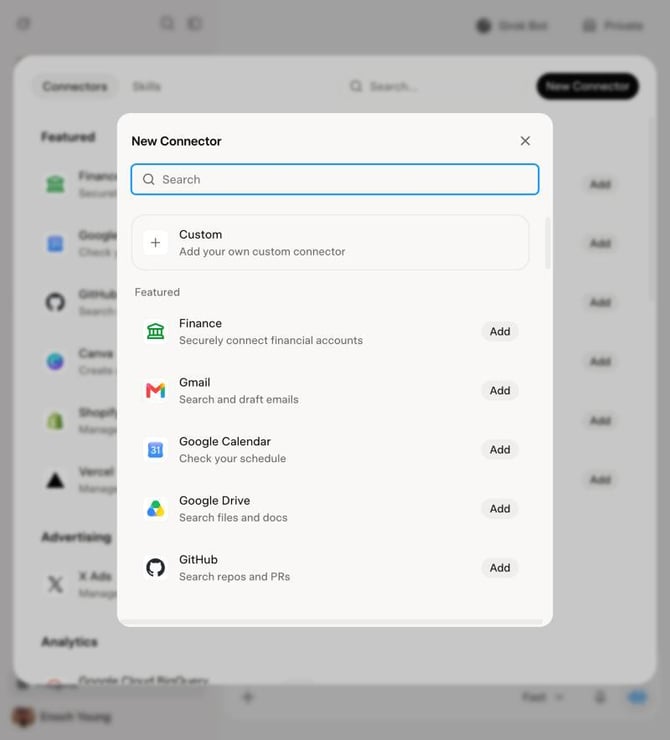
- Go to grok.com/connectors.
- Choose New Connector, then Custom.
- Name:
Reach Reporting. Server URL:https://api.reachreporting.com/mcp. - Choose Add Connector.
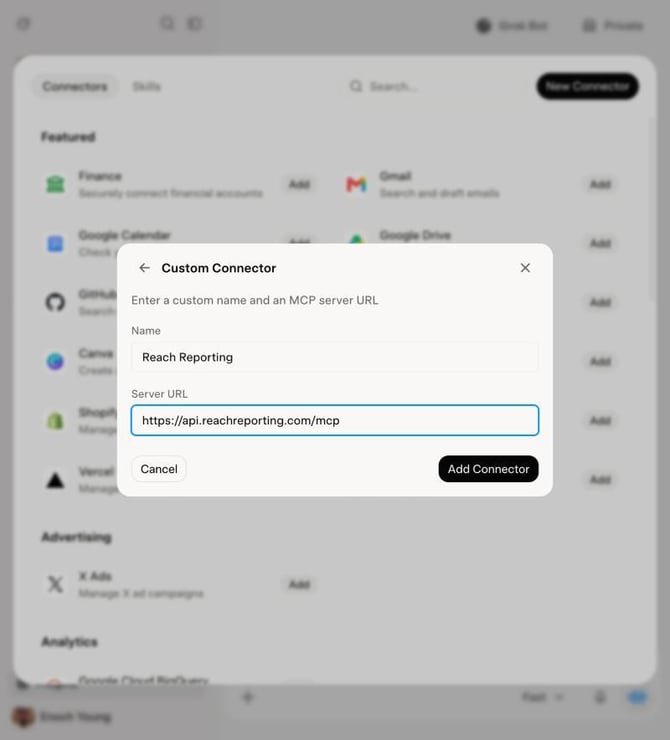
There is nothing else to enter: no Client ID, no Client Secret, and no advanced settings.
Step 2: Sign In to Reach
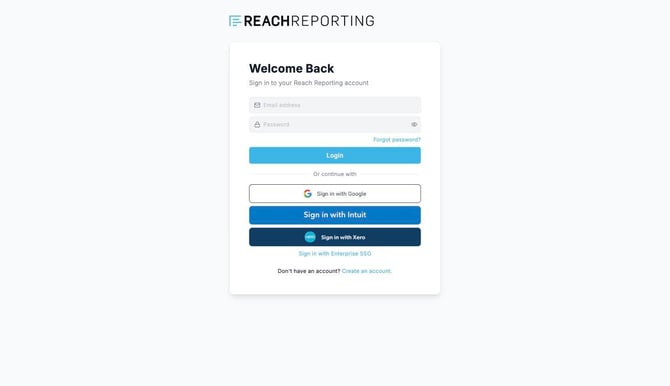
Sign in as you normally would, check that the authorize screen matches the connection you just started, then choose Allow.
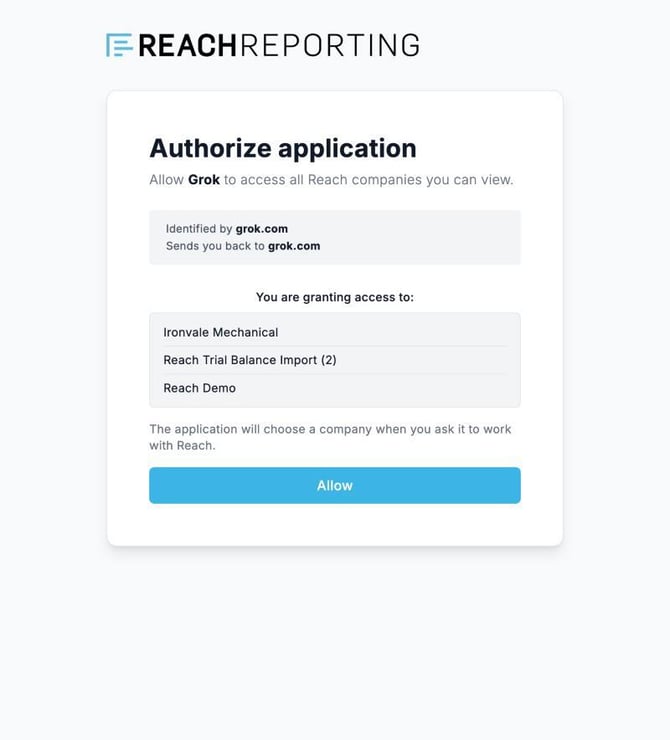
Step 3: Set Up for the Best Experience
If Grok offers a way to approve the Reach tools automatically for a session, turning it on makes the flow run without stopping. Publishing always waits for your explicit okay, whatever you choose.
Step 4: Design Your First Report
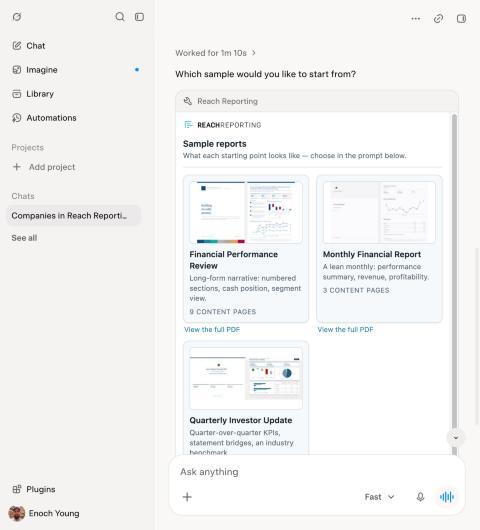
Grok confirms what it is about to build, reads the company's real financials, and compiles the report. This takes a few minutes.
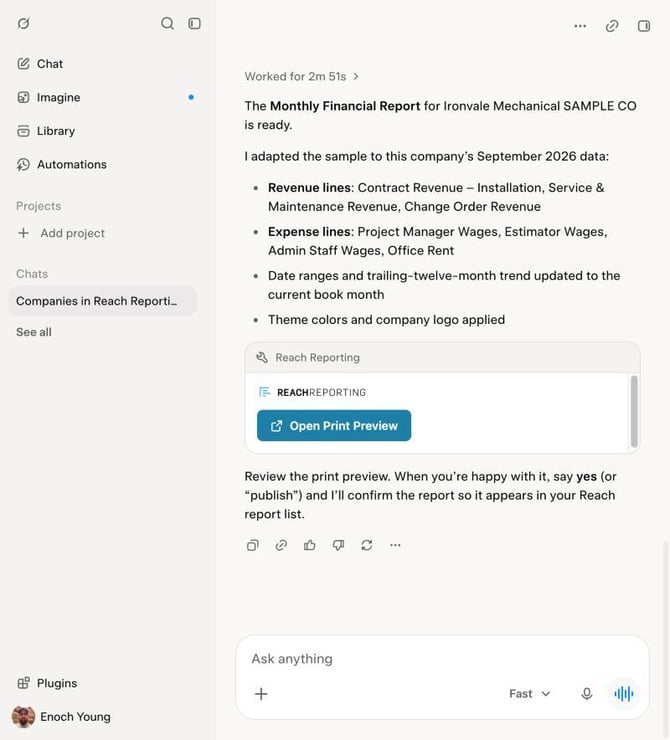
Nothing is published until you say so.