![Asset 1.png]](https://knowledge.reachreporting.com/hs-fs/hubfs/Asset%201.png?height=22&name=Asset%201.png)
- What the Reach Connector Does
- Where It Works
- Before You Start
- Step 1: Add the Connector
- Step 2: Sign In to Reach
- Step 3: Set Up for the Best Experience
- Step 4: Design Your First Report
What the Reach Connector Does
The Reach connector lets you design and edit Reach reports by chatting with Claude. You describe the report you want in plain language (the metrics, the audience, the period), and Claude reads your company's real financials, designs the pages, builds the report in Reach, and hands you a preview to open. You never touch a template, a chart editor, or any code.
Where It Works
One connector works everywhere you use Claude:
- Claude.ai (web)
- Claude Desktop (Mac and Windows)
- Claude mobile
- Claude Code
Before You Start
- A Reach Reporting account with at least one AI-enabled company or workspace. If you're an accountant, this is the company/workspace you already work in.
- A Claude account. Team and Enterprise admins can add the connector for the whole organization.
Step 1: Add the Connector
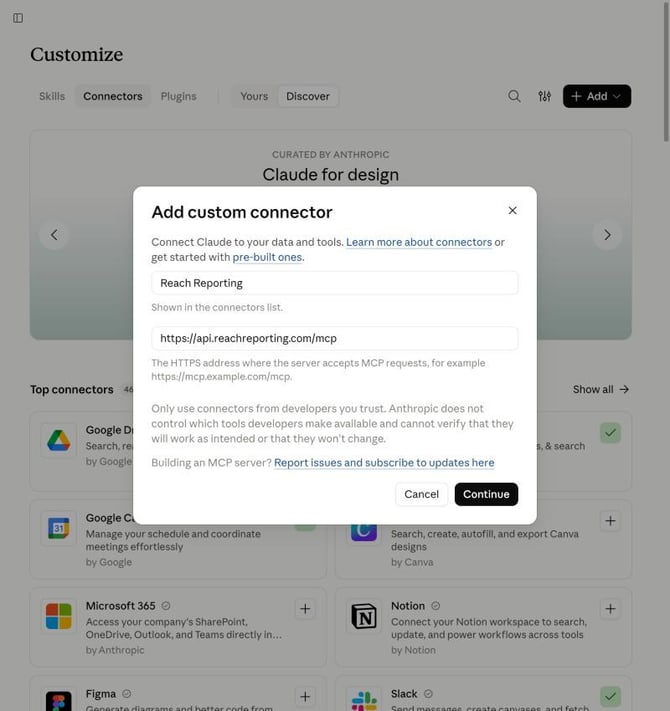
- In Claude, open Settings → Connectors (Team/Enterprise: Organization settings → Connectors).
- Choose Add custom connector.
- Give it a name and paste the Reach address:
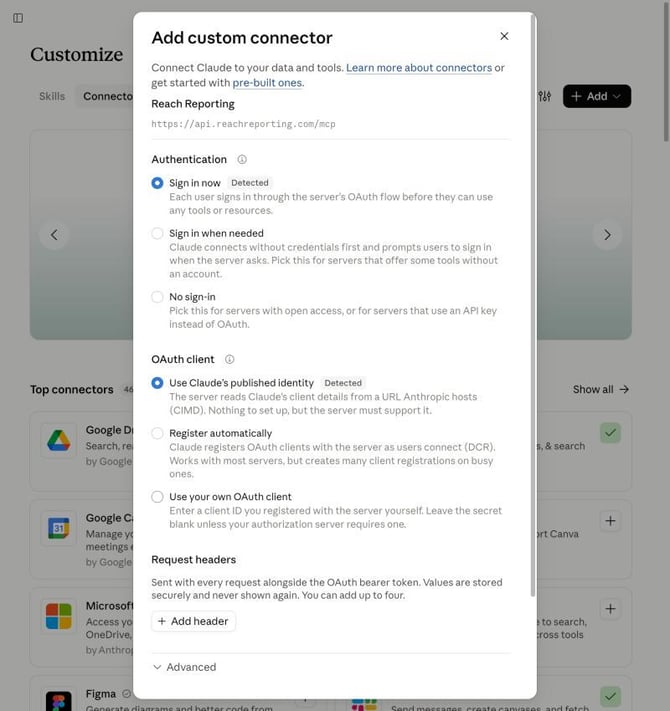
https://api.reachreporting.com/mcp, then choose Continue. - Claude checks the address and fills in the sign-in settings for you. You should see Sign in now and Use Claude's published identity, each marked Detected. There's no Client ID or Client Secret to enter.
- Choose Add. Claude registers the connector and its Reach tools.
Once Reach is listed in the Claude Connectors Directory, you'll add it by name instead of pasting the address.
Step 2: Sign In to Reach
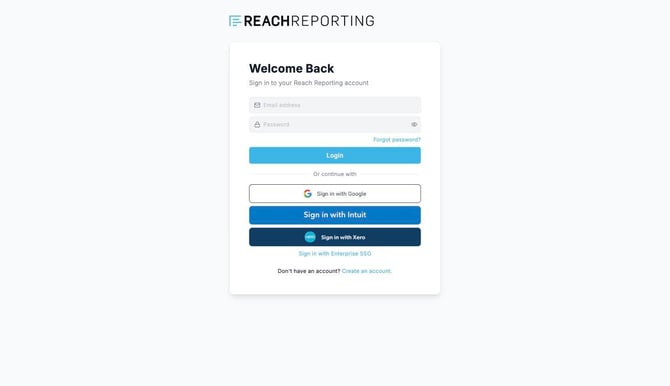
The first time you use the connector, Claude opens a Reach sign-in window. Sign in the way you normally do: Google, Intuit (QuickBooks), Xero, or your Reach email.
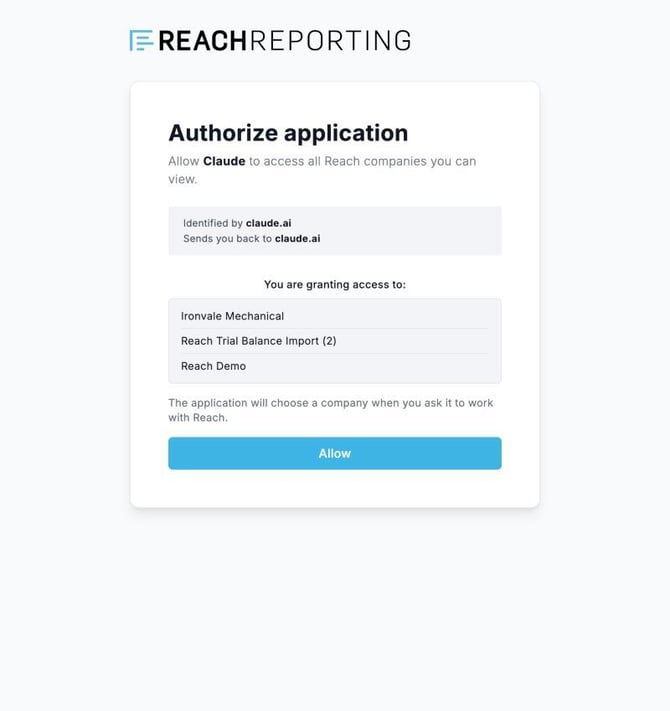
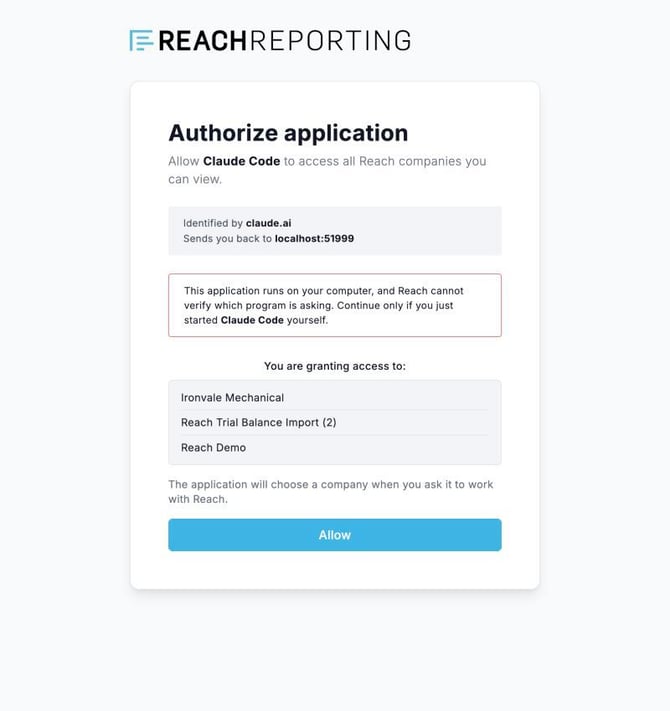
Reach then shows you what you're about to allow: which application is asking, the website that identified it, and where you'll be sent back to. Check that it matches the connection you just started, then choose Allow.
One connection covers your whole firm. The connector works with every company you can view in Reach, so you don't connect again for each client. Add a client later and it's there the next time you ask.
Claude never sees your password, and the connector only works with companies you already have permission to view. You can disconnect any time.
If you see a warning about your computer. Claude Code, and any other application running on your own machine, shows an extra warning on that screen: "This application runs on your computer, and Reach cannot verify which program is asking." That's expected. Reach can confirm the application is who it says it is, but it can't see which program on your computer is making the request. Continue only if you just started that application yourself.
Step 3: Set Up for the Best Experience
Two optional settings make a design session run smoothly:
- Model: pick Sonnet at medium reasoning.
- Approvals: turn on Automatically approve (or "always allow" the Reach tools). Claude still pauses if anything looks unsafe, and publishing always waits for your okay.
Step 4: Design Your First Report
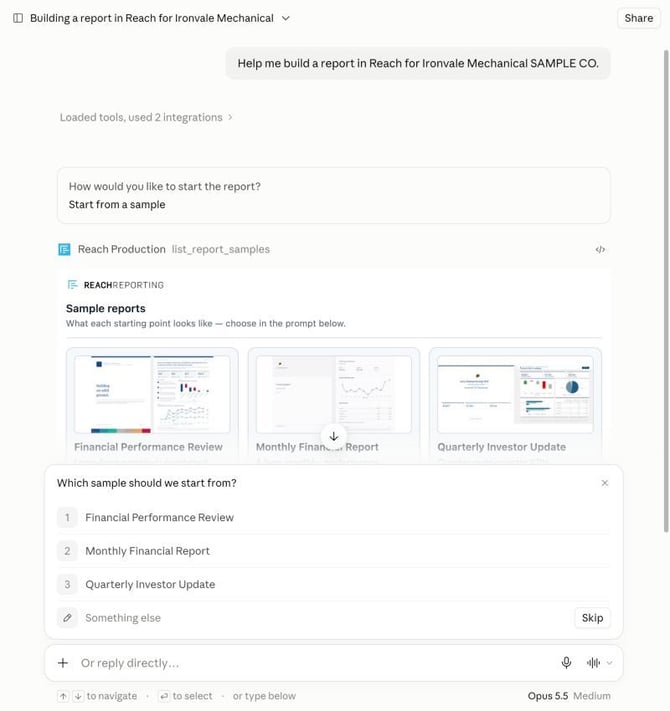
- Start with "Help me build a report in Reach."
- Answer a few plain-language questions: company, what it should show, the period, portrait or landscape.
- Claude asks how you want to start: from scratch, from a sample report, or from a PDF you upload.
- Claude builds the report and gives you an "Open Print Preview" button.
- Refine in plain language, then confirm to publish. Nothing goes live until you say so.
For the full walkthrough, see Design a Report by Chatting with Your AI Assistant.