![Asset 1.png]](https://knowledge.reachreporting.com/hs-fs/hubfs/Asset%201.png?height=22&name=Asset%201.png)
- Start the Conversation
- Answer a Few Quick Questions
- Pick a Starting Point
- Review Your Report
- Refine It in Plain Language
- Publish When You're Ready
- Tips for Great Reports
Start the Conversation
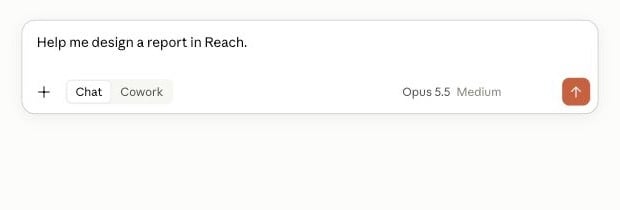
Once the Reach connector is added and signed in, just tell your assistant what you want:
"Help me design a report in Reach."
That's the whole trigger. You'll never write a formula, pick a template, or open a chart editor.
Answer a Few Quick Questions
You'll be asked a short set of questions so the report is built on the right numbers:
- Which company? From the companies you already access in Reach.
- What should it show? The metrics you care about, and who it's for.
- Which period? Last month, last fiscal quarter, or fiscal-year-to-date, anchored on your book month, not today's date.
- Actuals, or actuals vs. budget?
- Portrait or landscape? Letter or ledger.
Your assistant then suggests 4–6 focuses grounded in your actual numbers (your biggest accounts, the largest movers, or anything unusual) so you can steer toward what matters.
Pick a Starting Point
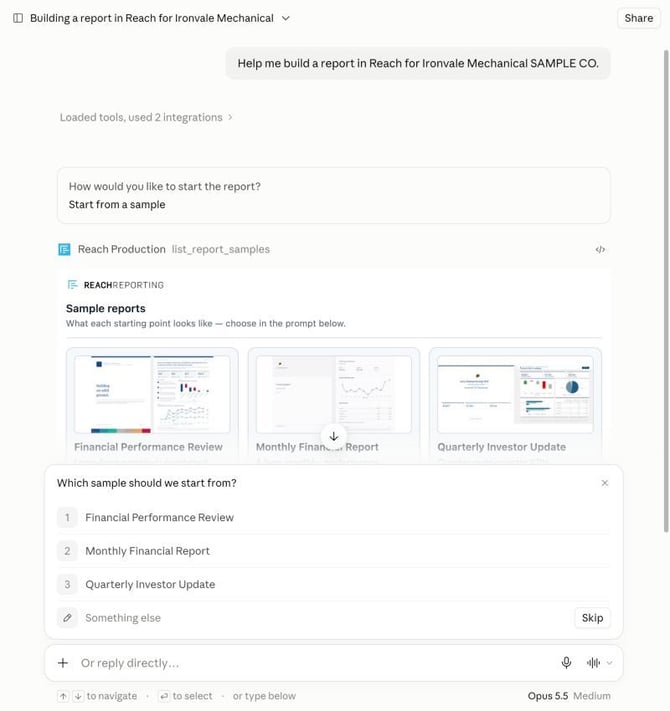
Reach's sample reports are shown side by side so you can see what each looks like. Pick the one closest to what you want:
"The second one."
You'll then be asked whether to take just the look of that sample, use it as a starting point, or replicate it as closely as your numbers allow.
Review Your Report
The report is built in Reach and you get an "Open Print Preview" button. Building takes a few minutes; you'll be told when to expect it.
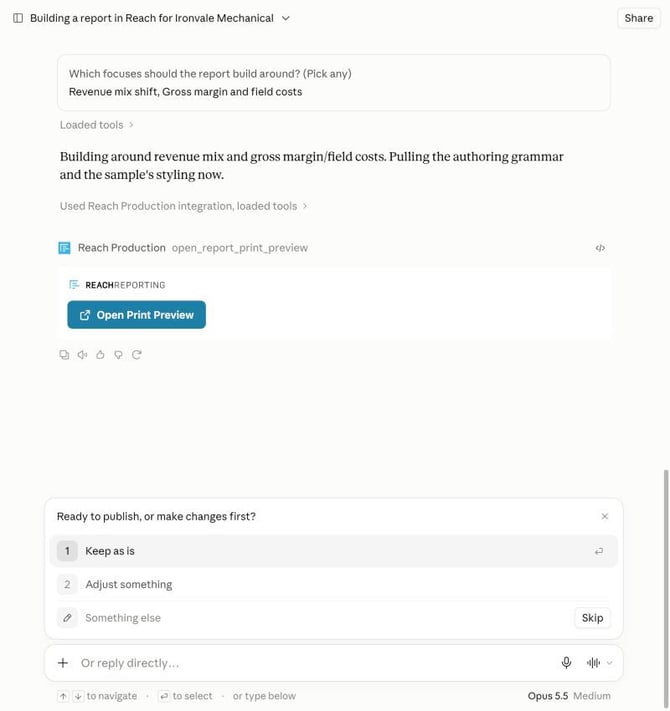
Review the actual report, not a wireframe or a static picture.
Refine It in Plain Language
Not quite right? Just say what to change:
- "Make revenue a bar chart."
- "Add a cash-flow page."
- "Use our brand colors on the charts."
Each change is applied and you get an updated preview. Keep going until it looks the way you want.
Publish When You're Ready
When it looks right, you are asked to confirm. Nothing goes live until you say so. A simple "looks good" is the go-ahead. The finished report then opens in the Reach editor to fine-tune or share.
Tips for Great Reports
- Be specific about the audience. "For the board" builds a different report than "for our accountant."
- Name what you want to see: a metric, a comparison, a concern.
- Iterate freely. Build a rough version and refine it in a few messages.