![Asset 1.png]](https://knowledge.reachreporting.com/hs-fs/hubfs/Asset%201.png?height=22&name=Asset%201.png)
In this article:
- Overview
- How Metric Colors Work
- Changing the Color of a Data Series
- Reverting the Data Series Color
- Saving a Color as a Preset
- Where Metric Colors Apply
Overview
By default, the colors in your metrics follow the company theme set in Company Settings > General Settings.
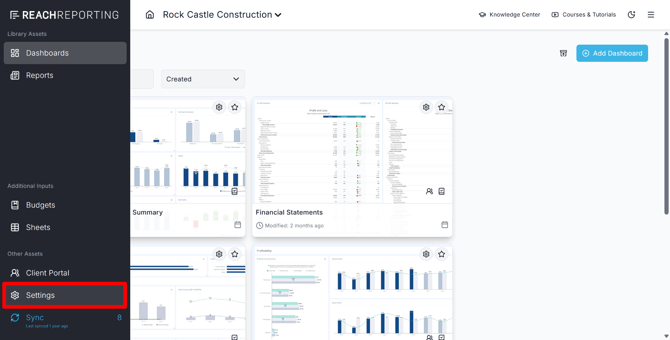

Customizing metric colors lets you override those defaults on a per-metric basis, giving each metric its own color while the rest of the company continues to use the theme.
Custom metric colors persist even if you change the company theme later, making them useful for metrics where consistent, intentional color is important (for example, a revenue metric always shown in green, or an expense metric always shown in red).
Note: The company theme color is set in Company Settings and applies to all metrics and dashboards across that company. Report-specific colors are handled separately in the Report Builder. For a full picture of how colors work across Reach Reporting, see Default Color Theme in Reach Reporting and Theme Color in the Report Builder.
How Metric Colors Work
Every metric in Reach Reporting has one or more data series — the individual bars, lines, or columns that make up the chart. Each data series has a color assigned to it. By default, that color is pulled from the company theme.
When you customize the color of a data series, you are setting a fixed override for that metric only. Other metrics in the same company are not affected.
Changing the Color of a Data Series
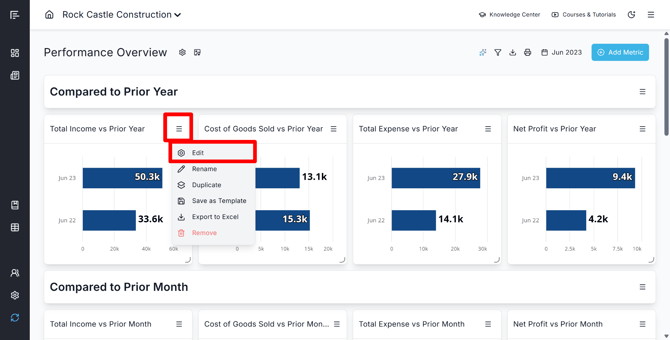
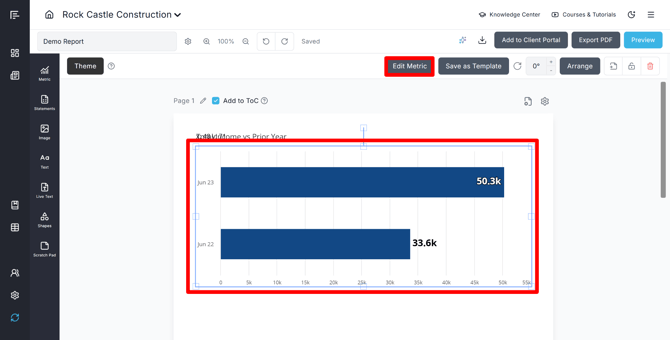
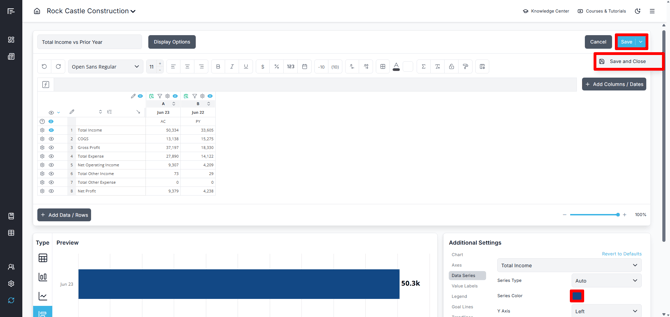
Open the metric you want to edit by clicking the menu bar and selecting Edit in a dashboard, or by clicking the metric in a report and selecting Edit Metric.
Navigate to Additional Settings > Data Series. Select the data series you want to change by using the dropdown.
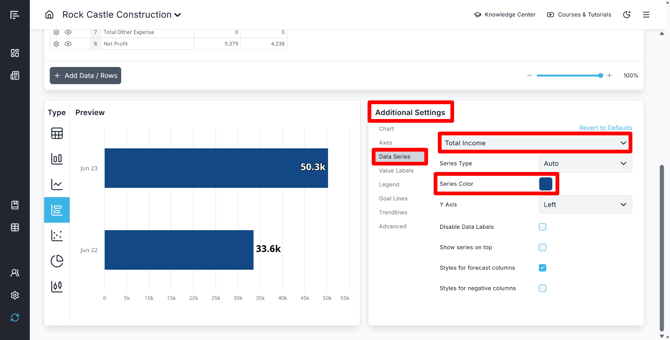
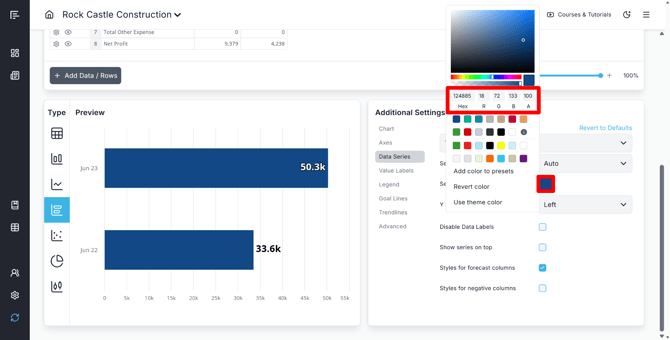
Use the color picker or enter a hex code to select your color under the Series Color option.
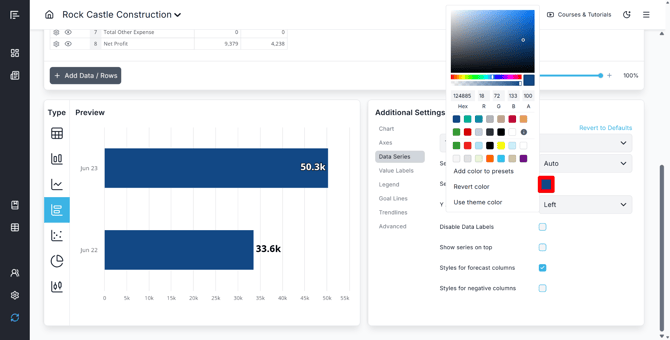
Select Save or Save and Close, and then the new color will be applied to that data series.
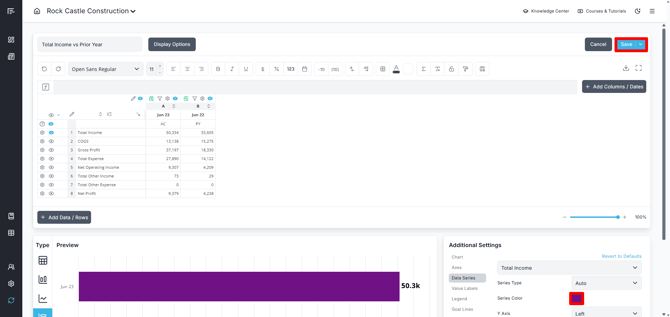
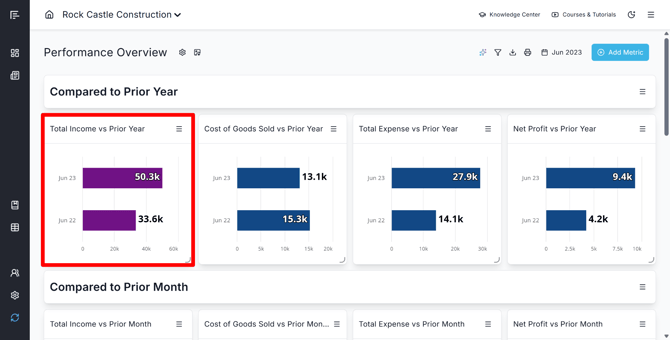
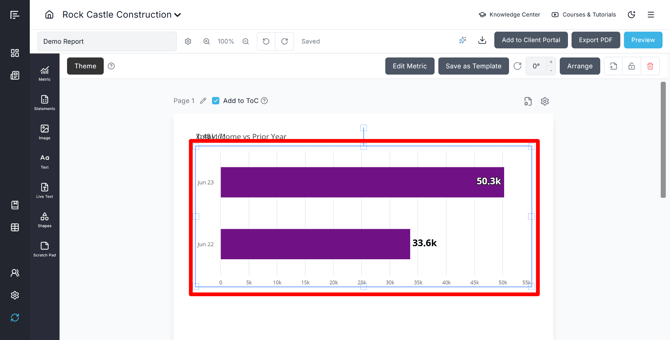
Tip: Use hex codes for exact brand color matching. If you have a brand style guide, copy the hex values directly from it.
Reverting the Data Series Color
If you want a metric to follow the company theme again after a custom color has been set, you can remove the override:
Open the metric and go to Additional Settings > Data Series. Select the data series you want to change by using the dropdown.
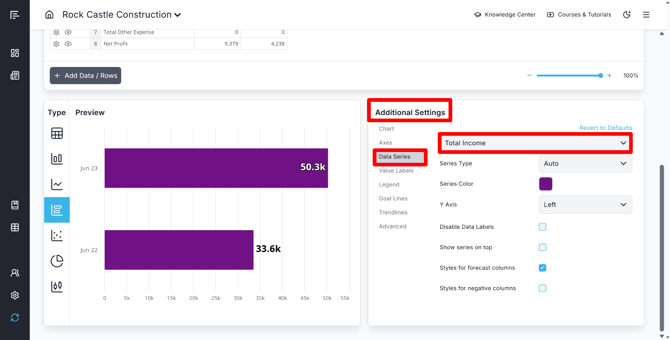
Click Series Color > Use Theme Color to use the Default Color Theme set in the Company Settings, or click Series Color > Revert Color to use the original metric color.
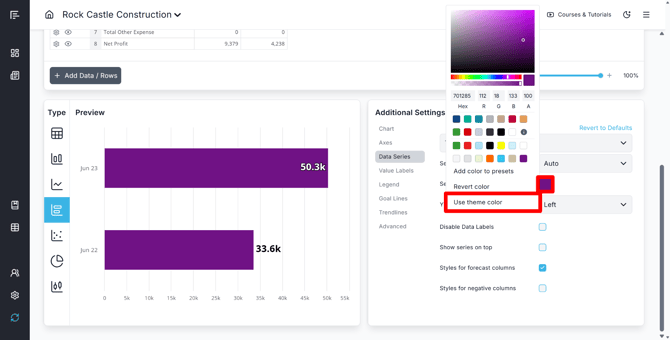
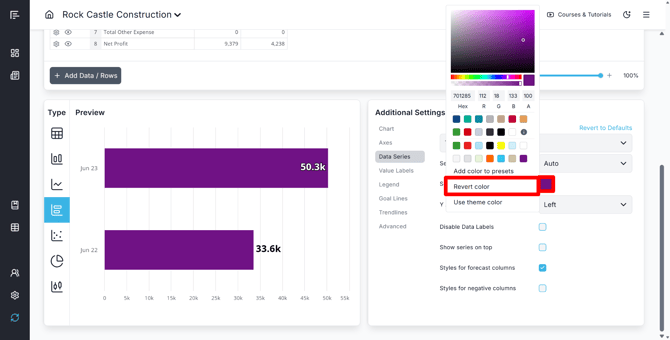
Select Save or Save and Close. The data series will update automatically any time you change the company theme color if it is set to Use Theme Color.
Saving a Color as a Preset
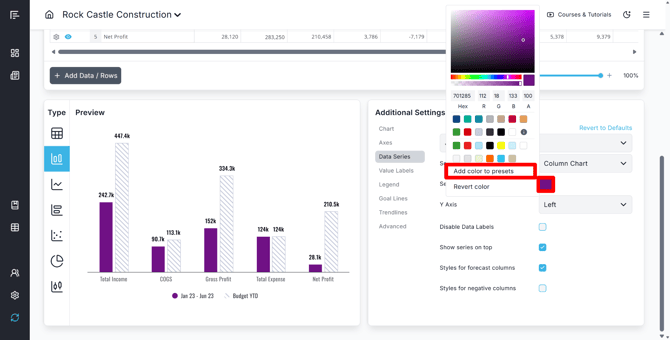
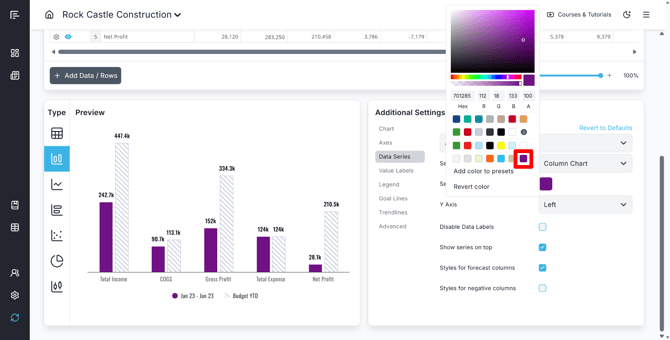
If you've created a custom color that you want to reuse, you can save it as a preset. Anywhere you see the option to change a color, you can click that option, choose the color you want to reuse, and then Add Color to Presets. That color will then be available to select when setting a color.
Where Metric Colors Apply
Custom metric colors apply wherever that metric is displayed:
- In the Report Builder (within report pages)
- On Dashboards
- In the Client Portal
Note: If a metric is set to use the report theme color inside the Report Builder (via the "Use Theme Color" option), the report theme color will take precedence over the metric's data series color for chart elements explicitly set that way. See Theme Color in the Report Builder for more details.
Go to the Reach Reporting app>
ARE YOU NOT CURRENTLY USING REACH REPORTING?
learn more at reachreporting.com
We are dedicated to helping you.
- Need Additional Help?
Your success is important to us.
Whether you're working as a CFO of a business or part of an accounting firm, Reach Reporting is here to improve your working knowledge of reporting and provide service tips and skills to ensure you're at the top of your game.
We make sure that you have access to staff members who are best suited to help you. We work together to resolve issues and create memorable moments that empower you to enhance your reporting skills.
We are here to listen to you. We understand that using new technology can be frustrating, so we can answer questions or jump on a quick Zoom call. Our entire staff has an in-depth knowledge of Reach Reporting and can quickly direct you to best practices to improve your reporting.
We are focused on providing solutions that save you time and increase your value. We continue to improve each day and look forward to visiting with you. Your communication with us is vital and appreciated.
Please feel free to chat with us by clicking the help chat bubble in the lower right-hand corner of this page.
Reach out to your Reach Reporting Rep and schedule a Zoom meeting by clicking the meeting link in their email signature.
Or schedule to join our ongoing webinars.
Reach Reporting is dedicated to helping provide a knowledge base that is easy to understand and informative. If you still have questions that have not been answered, please let us know by emailing support@reachreporting.com, chatting with our support team, or calling us at (877) 467-7637. We are here to ensure that you have a positive experience with Reach Reporting, as we want to continue to be the reporting solution you trust.
Need more access to Reach Reporting Resources?
Reach Reporting has a wealth of knowledge and a robust online community to support you as you create reports that provide powerful insight. Please look into the following resources.
Reach Reporting Blog: We add blogs to our site every month to give you great information in a fun and friendly manner.
Case Studies: We interview one company per month to help our clients highlight how they are using Reach Reporting and how it is improving their services and firm offerings. These case studies are invaluable to our community.
Knowledge Center: From simple to complicated, we provide step-by-step guidance to utilize every aspect of Reach Reporting in our robust knowledge center.
Video Tutorials: We know watching is sometimes easier than reading, which is why all of our tutorials are video-based in the video tutorial section of Reach Reporting and Youtube.
Social Networks: Join us on FaceBook, LinkedIn, Youtube, and Twitter.
Monthly Newsletter: Go to the footer of reachreporting.com and sign up to receive the Reach Reporting newsletters delivered directly to your inbox. Our newsletters cover tips and tricks, current events in accounting, strategies to improve your advisory services, and much more.
We look forward to helping you build insightful reports,
The Reach Reporting Team.